
Using the LMS Portal
LMS Navigation
Landing Page
Typically, for a Business User, upon login, the default landing page is the Action Center with actionable shortcuts to filters that are clickable and a search panel to the right. To the left is the filter pane which can be configured per Tenant needs, and remains constant for all products. Below is a screenshot of the landing page for reference.
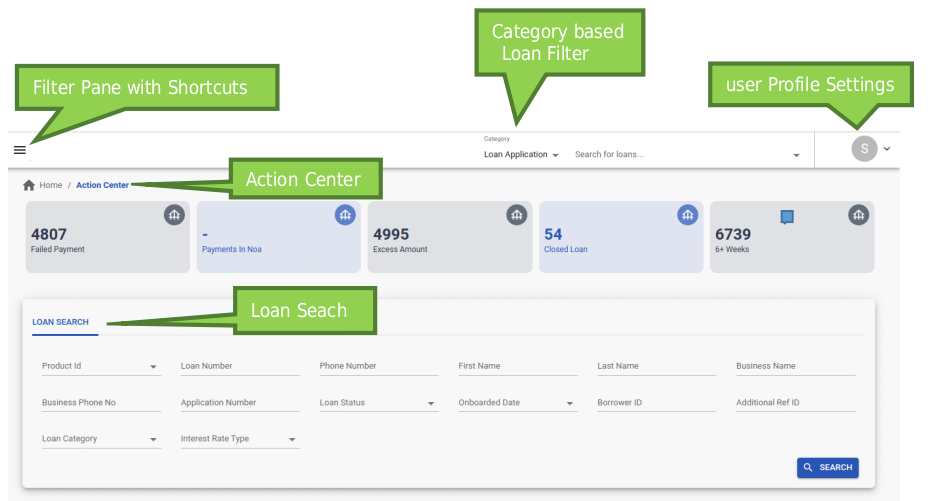
Once a loan has been onboarded, there are many ways to get a specific loan. A user can search for a loan, or search for a borrower using the left shortcut, known as “Filter” in LF. The “Search” filter allows the user to search for an application/loan/borrower by entering the search criteria. These search fields are configured as per the Tenant’s needs.
Filter Pane
Loans can be accessed through a list view which is known as a filter. A loan can appear in multiple filters. Upon login, the left pane has a list of clickable filters, below is a list of all available groups of filters, which are typically used. Some or all of the filters may be available for a tenant:
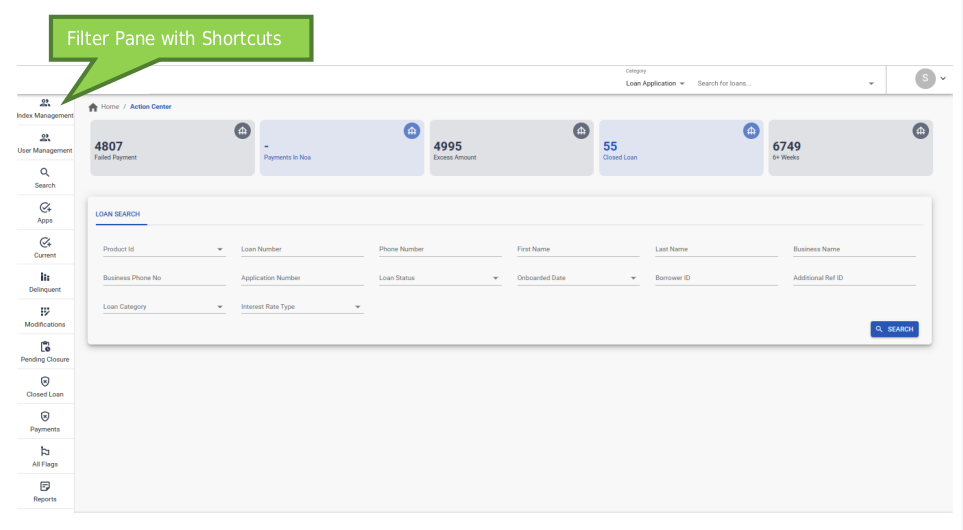
| Filter Group | Description | Sub-filters |
|---|---|---|
| User Management* | Used to set-up new users in LF system | All Users Create New User |
| Calendar | Used to view/make changes in the calendar configuration | None |
Search Apps | Used to search for applications/loans/borrowers Used to view approved for funding or already funded applications | Action Center Loan Application Borrower Approve/Funded |
Current Delinquent | Used to view loans based on Loan Performance | Good Standing DPD Under 30 30+ DPD 60+ DPD 90+ DPD |
| Modifications Pending Closure Closed Loan Payments | Used to view loans based on actions on a loan. Typically, subject to review and approval OR maker checker mechanism Based on payments on a loan | Pending Modification Review Modified Loans Restructured Loans Pending Charge-Off Review Paid-Off Charged-Off Bankruptcy Deceased Forbearance Unwind Closed Payments In Process Failed Payments Payments In NOA Auto-pay Paused Accrual Paused Excess Amount |
| All Flags | Based on flags configured | Flags |
| Batch Job | Used to view results of System tasks configured to run | Job Status |
| Reports | Used to access Operational reports | Report |
Loan View
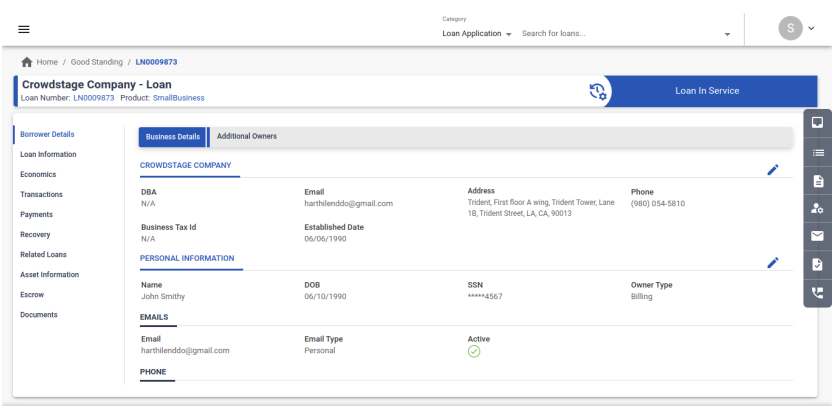
Every loan in the system has a unique identifier associated with it known as the Loan Id and a status associated. Loan status is indicated on the top right in the loan view as shown below. Possible loan statuses are used to indicate whether it is In service or Active, or Closed. There are also intermittent statuses which are yet to be closed, such as Paid-off, Charged-off, Sold Off, Bankruptcy, Deceased, Forbearance. These statuses are typically subject to a maker checker mechanism, meaning someone needs to initiate the process and approve it. In LF there is only 1 terminal status of a loan, i.e. Closed. Once a loan has been closed it cannot be revived, hence the ability to close has been kept as an explicit action and can be restricted to a few roles. Each loan also has an associated Borrower ID which is used to tie up all the loans of that borrower.
Main Tabs
-
Borrower Details: Relevant for both Business and Personal loans. Has two sections .
1.1. Business/Personal Details : Information of primary borrower in case of business lending and details of the individual in the personal lending case, information is editable from within the frame.
1.2. Additional Owners: If there is more than 1 borrower on a loan, then information about them is available in this tab. The information is editable from within the frame.
-
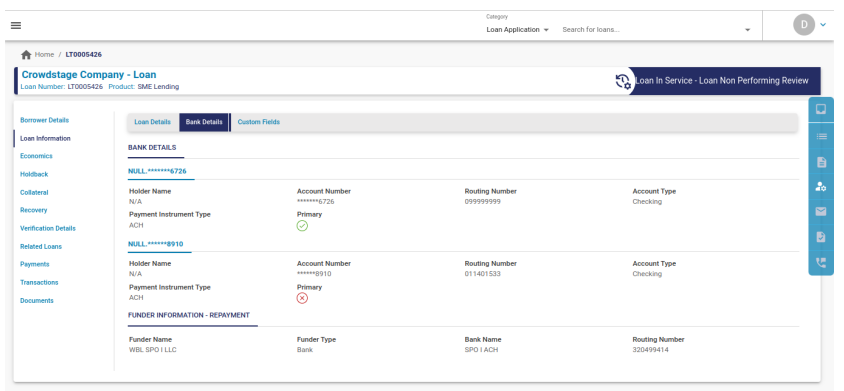
Loan Information: This tab has 3 sections within this tab.
2.1. Loan Details: Information such as rate, tenure, repayment frequency, funded date, funded amount.2.2. Bank Details: Default bank associated with loan account, used for Auto-pay instruction generation (via ACH/EFT) .
2.2.1. Funder Information: Relevant for a multi funder set-up, where loan is funded by an entity other than the Tenant. Funder details such as Funder Name, Funder’s Taxid, Funder A/c information both for disbursement and re-payment.
2.3. Custom Fields: Any fields passed onto LMS from LOS for storage and display purposes. They might have an impact on the loan behavior as per the client’s needs.
-
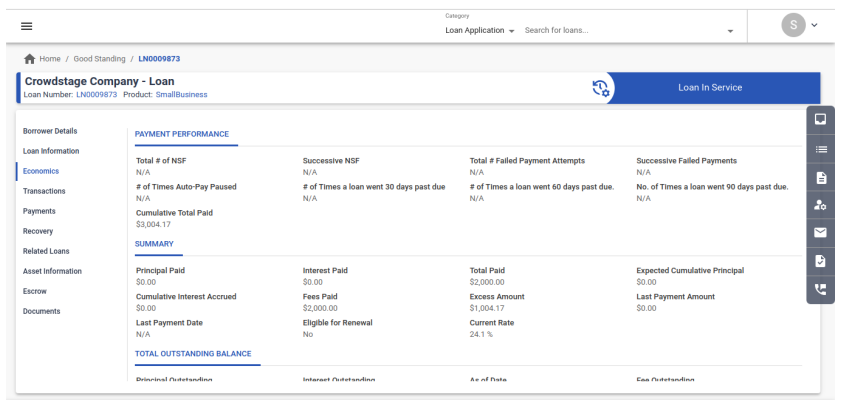
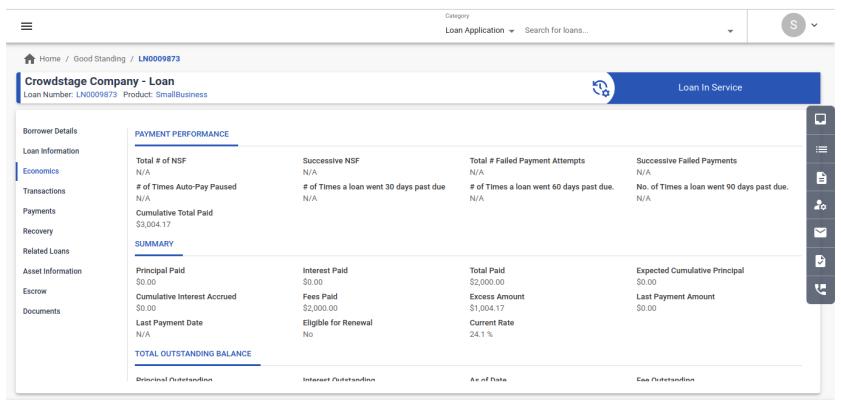
Economics: This tab contains the most relevant financial and non-financial metrics of a loan. These are designed to convey the most updated loan performance details, needed in case of service requests for account status, balances, past due amounts.
3.1. Payment Performance: This section contains negative payment performance indicators. Total # of Missed Payments, Total # of NSF, Total # of Failed Payments, Successive Missed Payments, Successive NSF, Successive Failed Payments, # of Times Auto-Pay Paused, # of Times a loan went 30 days past due, # of Times a loan went 60 days past due, # of Times a loan went 90 days past due.3.2. Summary: This section contains a summary of loan payments. Principal Paid, Interest Paid, Total Paid, Expected Cumulative Principal, Cumulative Interest Accrued, Fees Paid, Excess Amount, Last Payment Amount, Last Payment Date, Eligible for Renewal, Current Rate.
3.3. Total Outstanding Balance: This section has the most recent balances on the loan. These balances indicate the total amount needed to pay off a loan completely. Principal Outstanding, Interest Outstanding, As of Date, Fee Outstanding, Additional Outstanding Interest, Total Outstanding Balance, Minimum amount Due (if configured),
3.4. Current Outstanding Balance: This section has the most recent balances on the loan. These balances indicate the total amount needed to bring a loan back to “good standing” or “current” or non-delinquent in terms of repayments. Principal Outstanding, Interest Outstanding, As of Date, Outstanding From, DPD Days, Current Outstanding Balance.
-
Related Loans:
4.1. Borrower Loans: If a borrower has more than 1 loan, then all such loans, along with their loan id’s and balances are available in this tab.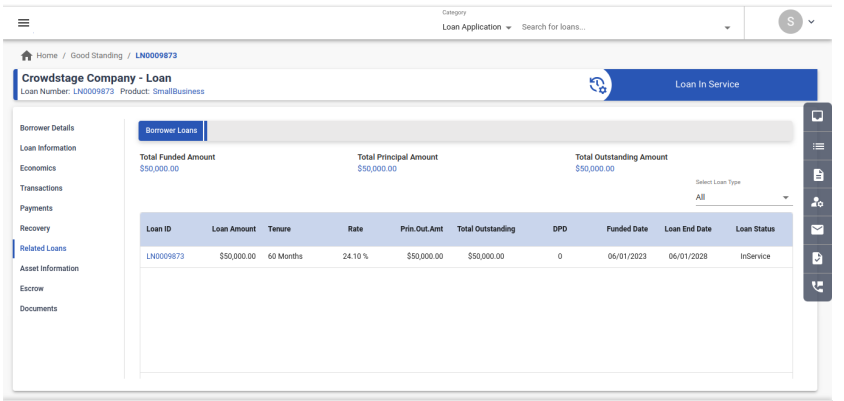
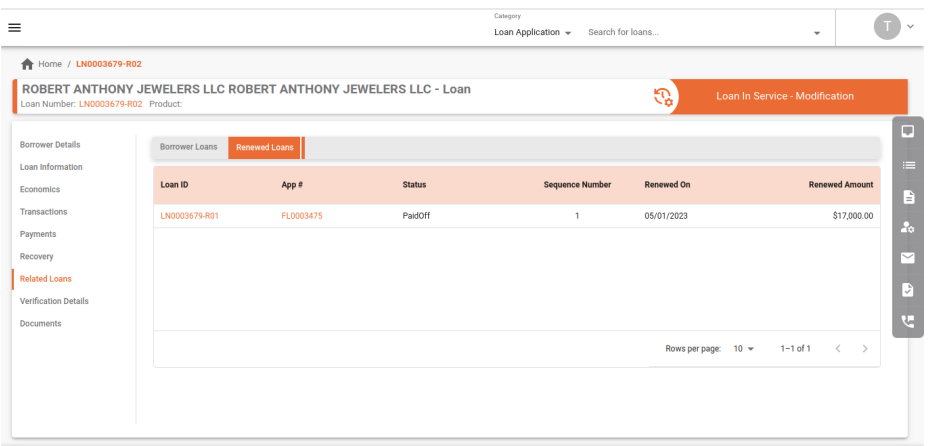
4.2. Renewed Loans: If a Tenant has configured the ability to renew his loans, then all such renewed loans are viewable from this tab.
- Recovery: If a loan is in the process of being modified or restructured or on a Temporary Payment Plan, then details about such a modification are viewable from this tab. This is not a commonly used tab.
- Verification Details: This tab contains details regarding verifications that may have been initiated during a loan modification/ Bankruptcy or other such processes.
-
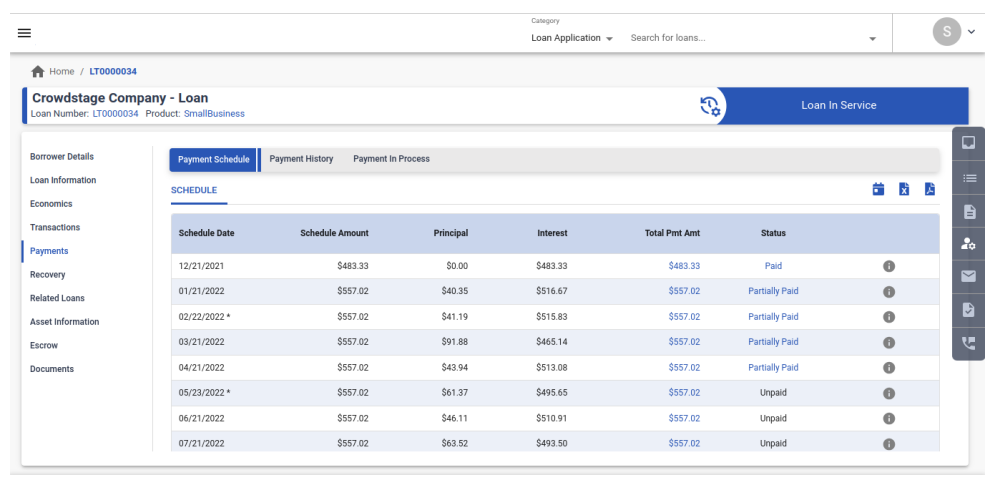
Payments - This section contains 3 subsections related to payments .
7.1. Payment Schedule: This tab has the most recent repayment schedule for a loan. As soon as a loan is onboarded in the LMS with funding, a repayment schedule gets created automatically for that loan, based on the product parameters configured and details provided at onboarding. At present all repayments are allocated between Principal and Finance Charge or Interest - as per the applicable schedule. Each repayment has a schedule date and a status to indicate whether it was paid or not. The schedule is also exportable in Excel and CSV. In case the loan has been modified/recast or restructured, then a new version of the schedule will get created. A dropdown will enable the user to check the older version of the Schedule.
7.2. Payment History: This tab lists all repayments and their allocations between various categories of payable amounts. It is a subset of the Transactions tab, which focuses purely on repayments. By clicking “Details” on this tab, more information about the payment instrument, number of attempts, and reattempts are also available from this view.7.3. Payments in Process: Typically, there is a time lag between when a payment has been initiated and when it is marked as a success. All payments that have not yet been confirmed can be viewed from this tab. They can have different statuses such as “Initiated” or ”Submitted” or ”Success” or ”Failed”. These statuses are useful when the system is initiating ACH/Debit Card payment pulls. Typically, an LF Tenant can configure a wait time, which defines how long to wait before marking a payment as successful. The typical configuration is to mark it as successful on the day a payment is due and only mark it as failure upon confirmation of failure directly or via a file upload. Depending on the payment instrument used, if a payment is in “Initiated” status, it can be deleted/stopped, by clicking “Delete” from this tab.
-
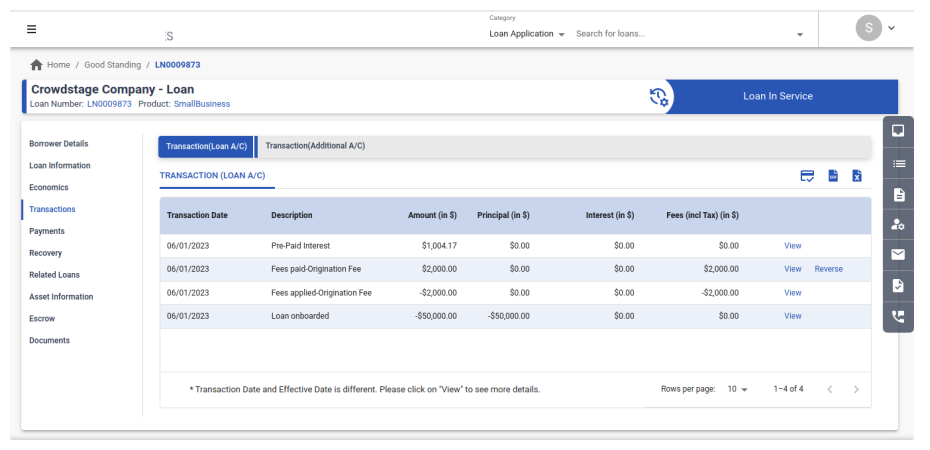
Transactions: This tab contains the most up-to-date list of transactions recorded for a loan. LMS may be linked to an accounting system or ledger, as per the Tenant. Each transaction that results in a change of outstanding balances is recorded in this tab. These transactions are also exportable in Excel and PDF. From within this tab, a user can reverse a given transaction. This is useful in case a correction needs to be done to a repayment transaction or a fee is to be removed from the loan history. Only the most recent transaction can be reversed. Reversal of transaction implies that a correction is needed and a correct transaction will be posted by the user, manually, after reversing. Reversing does not create refund transactions. Cash Payments cannot be reversed. This option is only available where a transaction belongs to the current schedule version. In other words, if a payment is made such that it has resulted in a recast, then the “reverse” option is not available in such cases.
-
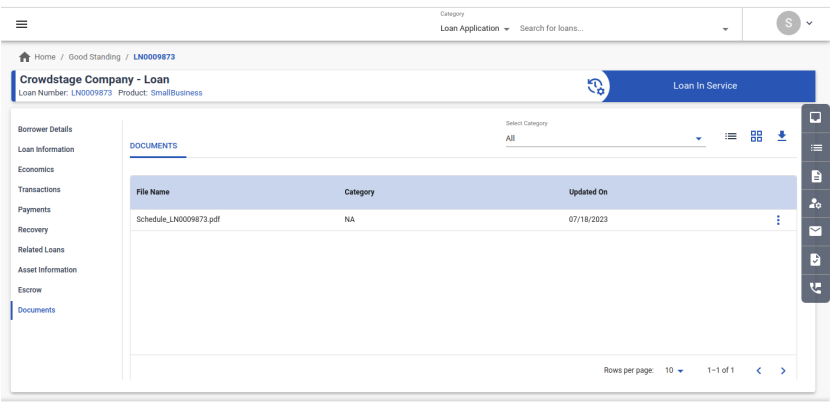
Documents: Documents that have been added during the life of a loan such as any related to borrower submitted documents for loan modification or restructuring of loan, or any other documents uploaded into the system. This also contains the statement of account for the borrower.
Updated 8 months ago