
Advanced Product Features
Certain features are specific to certain types of financial products.
Merchant Cash Advance(MCA)
1. MCA with reducing balance
MCA with reducing balance is an additional extension of the MCA product where the amortization schedule allocates finance charge for each payment in a way that the portion of payment to finance charge reduces with each payment as the principal portion increases. This computation is done using an Interest Allocation Percentage which uses a derived rate as explained below.
Rest all the features after creation of payment schedule generation will follow the same as normal MCA product i.e. due generation based on schedule, repayment and allocation to schedule. Interest allocation percentage can be viewed in LMS by downloading payment schedules in excel or pdf format.
Calculation for Interest Allocation in a schedule
- Compute Payment Interest Rate
- Calculate for the rate for the period
- Inputs:
- Payments Per Year : No of payments/schedules e.g. 249
- Scheduled Payment : Payment amount for each schedule e.g. 235.26
- Loan Amount : Total of Principal and fees (origination fee and processing fees if fees are marked as “Amortised” in fee configuration. E.g. 50500
- Excel Formula = RATE(PaymentsPerYear,-ScheduledPayment,LoanAmount)
- Compute interest portion of the schedule
- Interest in Nth schedule = Ending Principal * Payment interest rate
- Note: For first schedule Ending principal = Loan Amount
- Principal = Schedule payment - Interest
- Go on reducing the ending principal by the principal
Notes:
Loan Restructuring on MCA : Upon restructuring, a new payment schedule should be plotted carrying forward the older schedule. It can be used for Payment frequency change (weekly to daily and vice versa) and Payment date change. We can also change the Payment Amount by changing the Number of schedules. As of now Loan Modification is not allowed for MCA.
MCA with custom Amortization
In addition to the two amortization methods natively provided by LendFoundry, MCA with the amortization schedule allocates finance charge for each payment as provided by any third party via API such as Carleton. This allows the lenders a complete control of the MCA amortization, Rest all the features after creation of payment schedule generation will follow the same as normal MCA product.
MCA Renewals
In a Merchant Cash Advance, loan renewal refers to the process of providing additional funding or extending financing to a merchant who has an existing MCA agreement. Essentially, it allows the borrower to secure new funding by “renewing” or rolling over part or all of their remaining balance from the current MCA advance into a new MCA agreement.
The renewal application is submitted from the origination system. The LOS uses the LMS API(s) to retrieve loan details and the payment performance of the parent loan. Based on this, the LOS executes several eligibility rules(as per the client) for the renewal application.
Once the eligibility criteria are met, the application moves through various status in LOS and finally moves to the “Funded” status. Here, the parent loan is paid-off and the renewal loan is onboarded to the LMS.
In the LMS onboarding API, the following fields are submitted for renewals:
- BorrowerId: This unique identifier is assigned to the borrower in the LMS. It links the renewal application to the specific borrower in the system and is used to retrieve borrower-related information.
- SettlementIntAmount: This is the amount of outstanding interest on the parent loan that will be settled. (The field is passed in Customfields in onboarding api)
- SettlementPrnAmount: This is the amount of outstanding principal on the parent loan that will be settled. (The field is passed in Customfields in onboarding api)
- LoanType: "Renewal" This field indicates that the loan is a renewal type of loan. It helps the LMS recognize the loan type as a renewal rather than a new loan.
- FundedAmount: This is the total amount funded to the borrower as part of the renewal loan.
- FactorRate: The factor rate is a multiplier applied to the funded amount to calculate the total repayment amount.
SequenceNumber:This sequence number represents the iteration of the loan renewal i.e. The number of times a loan is renewed. - SettlementAmount: This is the total amount used to settle the parent loan, which includes the sum of the principal and interest owed. It clears the remaining balance of the parent loan as part of the renewal process.
- SettlementAmount should be always greater or equal to the outstanding amount in the parent loan.
- SettlementDiscount: This is the discount applied to the settlement amount as an incentive for the borrower to renew. It reduces the borrower’s payoff amount on the parent loan, usually by discounting the interest owed.
- ParentApplicationNumber: This is the application number for the original (parent) loan that is being renewed. It links the renewal loan back to the initial loan in the system, allowing the LMS to apply the settlement, handle outstanding balances, and track the renewal history.
On the LMS, the parent loan is paid off using the settlement amount, and the new renewal loan is onboarded. Proper transactions are created on both the loans. The new loan number for the renewal is generated using the sequence number in the format
The settlement discount is determined based on specific eligibility criteria, including the percentage paid down and the Days Past Due (DPD) count. Discount is optional and the rules can vary from client to client. If the outstanding balance is less than the settlement amount, any surplus funds are allocated to the excess amount in the parent loan.
Supply Chain Financing(SCF)
In the case of SCF, each invoice will be onboarded as a new loan into the LMS. Invoice details are provided at the time of Onboarding for each invoice. Invoice is onboarded into the LMS only after a decision to fund has been made, outside the LMS. Limits are displayed for all SCF loans of a borrower. In addition to the “Make Payment” action, in the case of SCF loans, we have the following functionalities to complete the loop:
Funding new invoices
Based on a borrower’s limit an underwriter may choose to approve funding of additional invoices. Once funded, these invoices can be onboarded into the LF LMS, using the same onboarding API as the first-time onboarding, except with new invoice details. At present, LMS does not perform any validations to check whether the limit is exceeded or not, since funding has already occurred.
FIFO-based payments
To accommodate FIFO-based payments towards multiple invoices, every loan in LMS has a “Make Borrower Payment” action available. Whenever a payment is received from a borrower to cover multiple SCF loans, for the same borrower, this action can be used to pay outstanding balances. For all SCF loans, when a bulk payment is received, the system will clear the past due amount on the oldest loan first, if a surplus remains then the second oldest loan’s past due amount followed by subsequent loans. Once the past due amount for all loans of that borrower is cleared, the surplus amount is used to clear total outstanding balances in the same FIFO order. Please note that this action is available on all loan types and not SCF. However, it needs to be used with caution as applicability and testing has been restricted to SCF loans only for the time being.
Update Borrower Information
Once the loan(s) of the borrower are onboarded to LMS, the back office user can edit some information such as Phone Number, Address, and email ID by clicking on the edit icon on the Personal Information ribbon in the Business details tab. This change can be applied to that loan or to all the loans of that borrower. A corresponding API also exists for this functionality. This will be recorded in the Activity List and all other related functionalities will work as expected.
Line of Credit(LOC)
Types of LOCs
There are broadly 2 types of LOCs:
- Revolving – In a revolving LOC, the amount available to make additional draws (or funding) will be replenished based on the payments. Also, the loan doesn’t get paid off before maturity even if all outstanding is cleared.
- Non-revolving – In a non-revolving LOC, the available amount for making additional draws (funding) isn’t replenished based on the payments. Also, the loan gets paid off once the outstanding becomes 0.
Tenures in a LOC
A LOC can have either a “Fixed” term or an “Open” term:
- Fixed Term: Here, the Maturity Date remains the same even after multiple draws.
- Open Term: Here, the Maturity Date keeps increasing with each draw
LOC Status
| Loan Status | LOC Status | Available APIs | Details |
|---|---|---|---|
| Loan in Service | Active | Suspend LOC | Only a LOC with an “Active” status can be suspended. No new draws can be initiated now. This action is prohibited if any draw is in “Verification” status. |
| Loan in Service | Active | Activate LOC | Once a line is suspended, it can be re-activated using the “Activate LOC” action |
| Loan in Service | Active | Cancel LOC | Only a LOC with an “Active” or “Suspended” status can be canceled using this action menu. Once a line is canceled, it cannot be re-activated using the “Activate LOC” action and no new draws can be initiated. If any draw is in “Verification” status, this action is not allowed. |
| Loan in Service | Suspended | Activate LOC | A suspended line can be reactivated using this action. Once activated, new draws can be initiated again. |
| Loan in Service | Any | Deactivation/Closure of LOC | Based on the line’s “Valid till Date” passed from LOS, the system will automatically close the LOC and change the LOC status to “Closed”. No new draws can be initiated in this status and the line cannot be activated again. If “Valid till Date” is not passed from LOS, the line will not automatically be closed in LMS. It will remain open and the user can manually cancel the line anytime. |
Additional Funding/Draw Flow
-
A draw can be initiated in LMS through the “Initiate Draw” action (explained below) or recorded in LMS via the Initiate Draw API. “Requested Date” and “Requested Amount” are mandatory fields. The status of the draw is “Verification” at this point. This can be seen in the Draw Request tab. A draw can be deleted in this status.
-
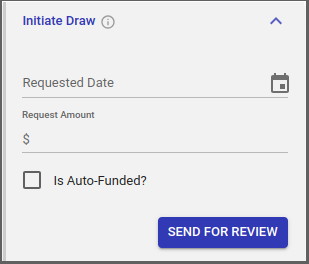
- When the draw is initiated from an upstream LOS, then the draw cannot be deleted.
- The draw can now be approved using the Approve Draw action menu or via the corresponding API.
-
When the “AutoFunded” flag for the draw is true then LMS is responsible for creating the disbursement. The disbursement instruction is created when this API is called, but the disbursement file is generated by the usual disbursement task and has a date that is based on the approval date (considering cut-off time) + payment processing days(considering holidays). On this date, the file moves to the client shared location and this is the date which is the Funded Date.
-
When the “AutoFunded” flag is false, then LMS will not worry about the disbursement and the status for the draw will be “Approved” if the draw is approved else “Rejected”. The caller then has to call Funding Request API and pass the Funded Date so that the same can be updated in LMS (to start accrual on the draw).
-
The accrual process and re-amortization should start from the date the draw status got changed to “Funded”.
-
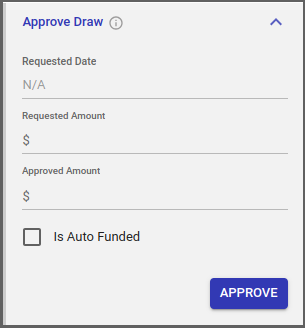
“Requested Date” and “Requested Amount” will be pre-filled based on what was entered during the Initiate Draw. Approved Amount is mandatory.
-
The draw can also be rejected using the Reject Draw action menu or via the corresponding API. Reject Reason is mandatory.
-
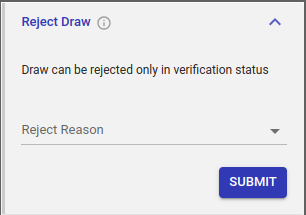
Notes:
-
- Fees: If the lender wishes to apply a fee during the draw process, it can do it in 2 ways:
- Let us know the fees name and amount - we can have it pre-configured and the system can apply the fees automatically once the draw is approved.
- If the fee amount can vary and/or does not apply to all draws, then it can use the existing “Apply Fee” action to apply the fee manually.
- We can also pass the fee in the Initiate Draw API. While funding the draw that amount will be deducted from Approved Amount (Funded Amount = Approved Amount - Fees(in InitiateDraw)).
- Fees: If the lender wishes to apply a fee during the draw process, it can do it in 2 ways:
Draw Status
| Loan Status | LOC Status | Available APIs |
|---|---|---|
| Verification | The user has created a draw request using the “Initiate Draw” action. | Delete (in the draw request tab - refer mockup) Approve Draw (action menu) Reject Draw (Action menu) |
| Deleted | The user has deleted the draw request. | |
| Rejected | The draw request is rejected | |
| Approved | The draw request is approved | |
| Funded | Draw is funded |
Construction/CRE Loans
Escrow Accounts
Definition and Concept
For CRE/construction loans, multiple escrow accounts can be linked with the loan. Lenders typically use these to make property tax and insurance payments on behalf of the borrower. LMS can add multiple escrow accounts to any loan account during onboarding or even at a later stage.
Types of Escrow Accounts - Property Tax, Insurance, and Holdbacks for CRE loans; Interest Reserve for Construction loans. Each escrow account can have sub-types as well.
Escrow Replenishment
An escrow account can be manually replenished or automatically replenished via scheduled repayments.
Auto- Replenishment
Escrows that have “Schedule Replenishment” as true, are replenished via auto-payments. There are dedicated tasks in LMS that take care of assessing the escrow(increasing the o/s on the escrow so that the payment can go towards this o/s escrow amount) and replenishing the escrow.
Manual Replenishment
If the user wants to replenish the escrow manually, then he needs to first assess the amount using the “Assess Escrow” action and then apply the payment using the “Make Payment” action as shown below.
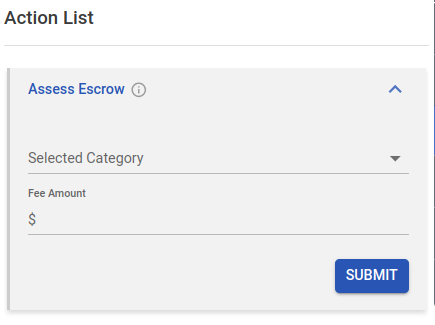
“Selected Category” - The user can select the category from the drop-down.
“Fee Amount” - The Amount that the user wants to assess to do the replenishment
Once the user submits the required fields, then the amount is added to the “Assessed Amount”.
The user can select the “Make Payment” action menu to replenish the amount.
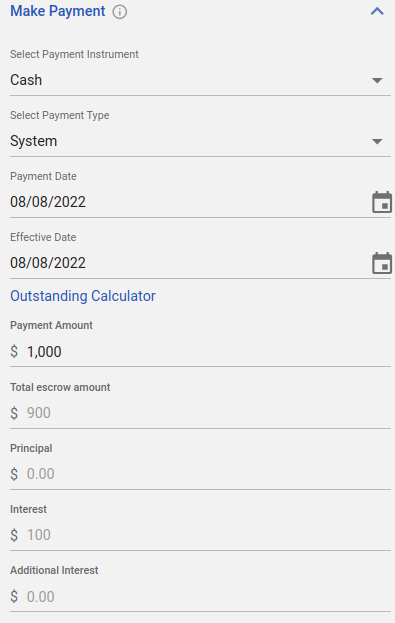
“Select Payment Instrument” - The user can select the instrument from the drop-down-by default it would be “Cash”
“Select Payment Type” - The user can choose the payment hierarchy as “System”/”Schedule”
“Payment Date” - The date on when the user wants to record the payment
“Effective Date” - The date when the payment should be effective
“Payment Amount” - self-explanatory
Based on the hierarchy selected, the payment would be apportioned.
Once the user submits the required information, the escrow will be replenished along with the scheduled payment.
“Payment Amount” - self-explanatory.
Based on the hierarchy selected, the payment would be apportioned.
Once the user submits the required information, the escrow will be replenished along with the scheduled payment.
Note: Assessment has to happen before doing manual replenishment
Direct Replenishment from other Escrow Accounts
The “Replenishment Escrow” action can be used to replenish an escrow from another type of escrow.
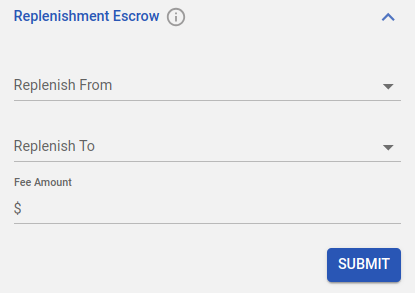
“Replenish From” - The escrow account from which the replenishment should happen. The user can select any escrow type or even they can select “Borrower” if the replenishment has happened directly from the borrower.
“Replenish To” - The user can select the account to which the funds need to be added.
“Fee Amount” - The amount to be replenished.
Once submitted, the account will be replenished and the balance in the account from where the funds were taken will be reduced.
Escrow Withdrawal/Disbursement
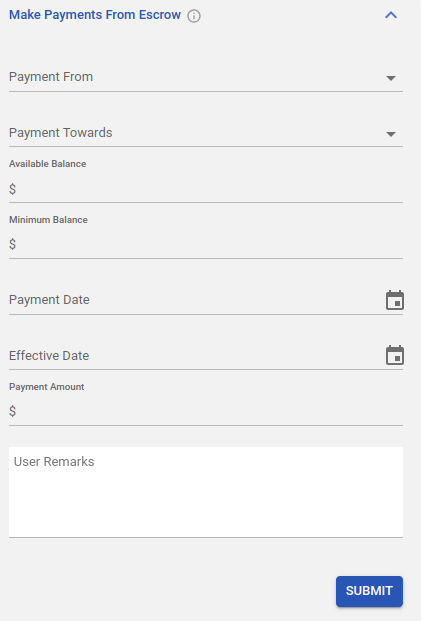
Anytime, the lender wishes to pay the taxes or insurance from the escrow, he can use the below action to withdraw the funds. This will increase the Total Withdrawal Amount value.
-
- Payment From - The user can select the escrow-type from dropdown
- Payment Towards - dropdown of configured escrow account types + Refund Excess(for a refund to the borrower) + Loan(used for applying payments towards loan)
- Available Balance - Current balance of escrow
- Minimum Balance - Minimum balance of escrow that needs to be maintained
- Payment Amount -Amount that should be less than the (Available Balance - Minimum Balance). In case, this criterion is not met, the system throws a warning message.
- Based on the value selected in the “Payment Towards” field above, the system should populate the linked types with that escrow along with their due amount and due date.
- Payment Date - date of recording this payment
- Effective Date - effective date of payment
- The “Notes” will be used to add any specific notes
- Once the payment is made, the Next Due Date will be updated to the Date of payment + frequency.
Escrow Tab
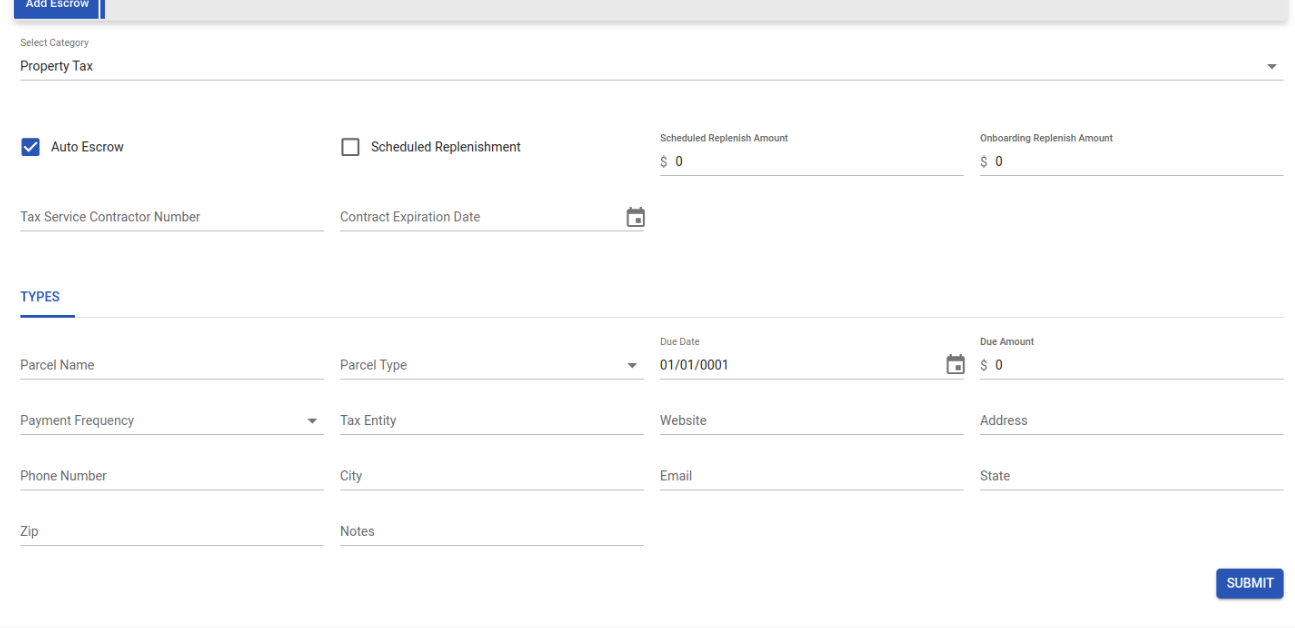
Newly onboarded loans do not have escrow accounts. To add them, navigate to the "Escrow" tab, where you will find the "Add Escrow" subtab to add the escrow accounts.
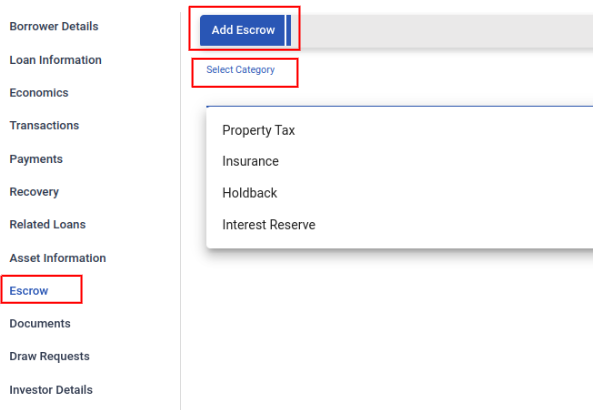
In the "Select Category" section, choose a category to add. Once selected, all fields related to that category will be displayed.
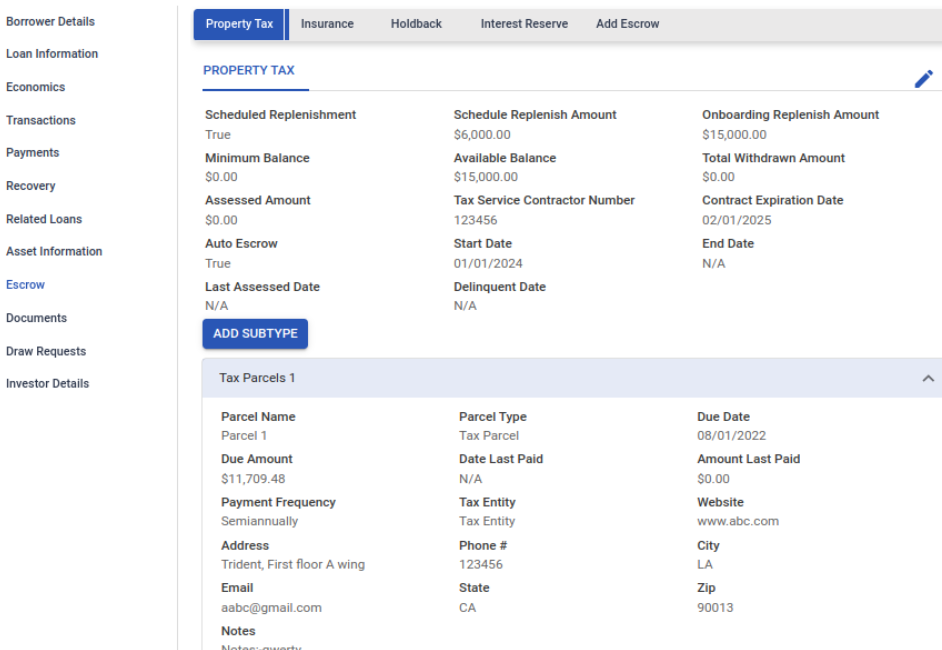
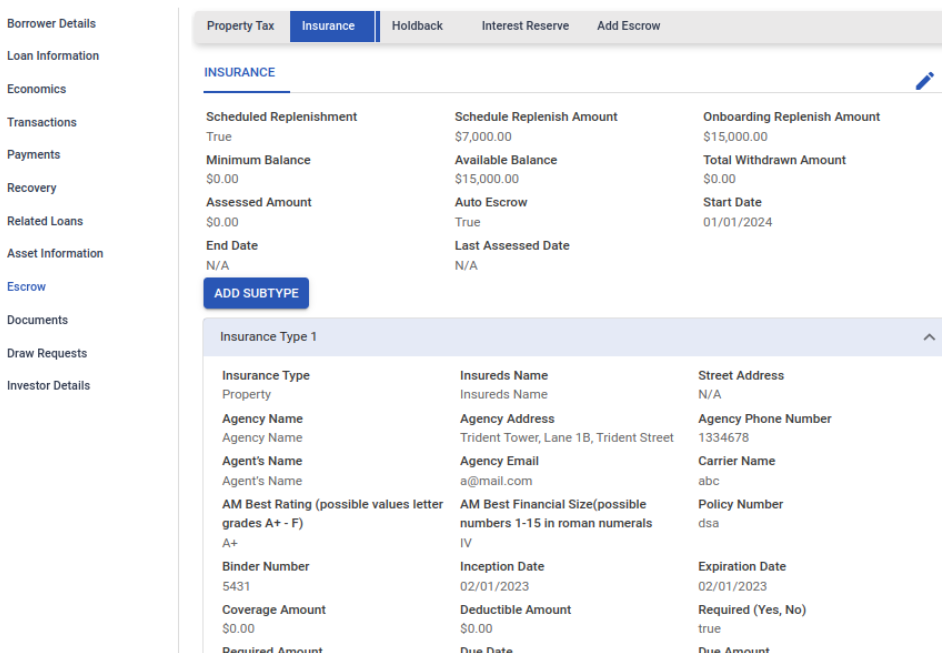
Once the required fields are updated and submitted, the added escrow account will be displayed in the same tab.
Adding Sub-types to an Escrow Account
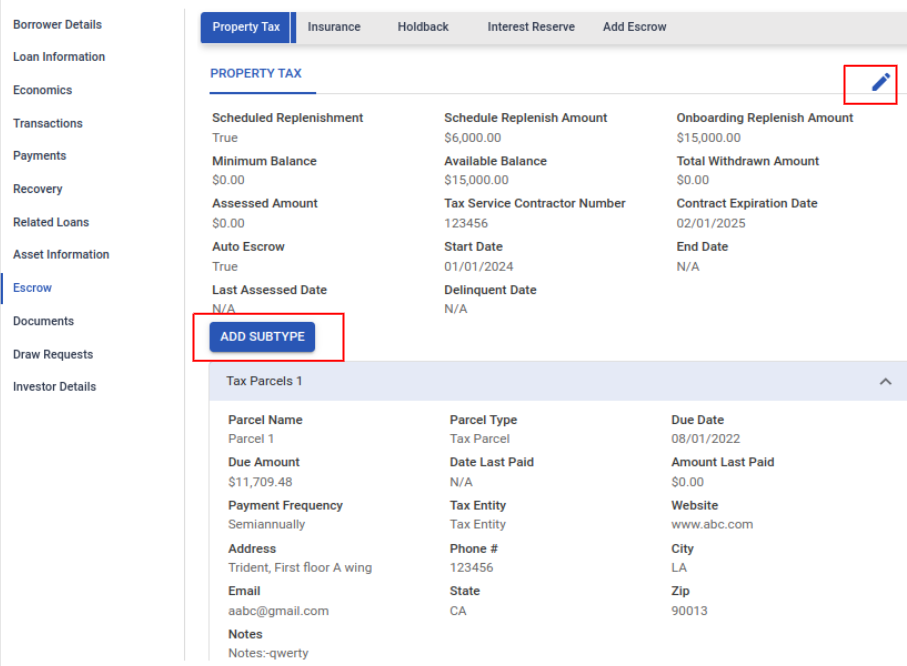
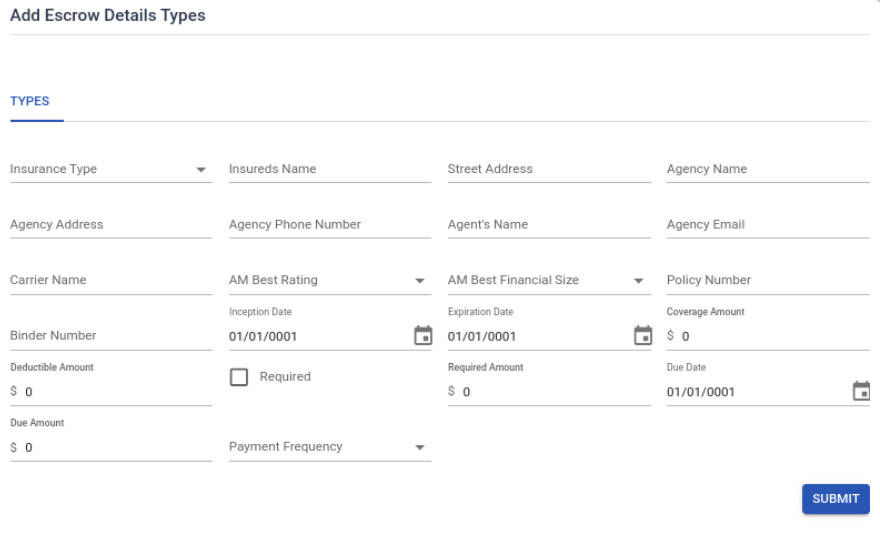
Each escrow tab has an "Add Subtype" button that allows the user to add sub-types to an escrow account. When the user clicks "Add Subtype," the page below will open. After updating the required details and submitting, the subtype will be added to the specific escrow account.
Edit the Escrow
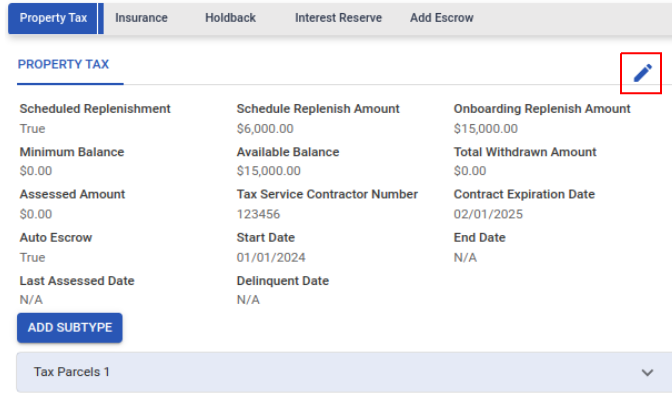
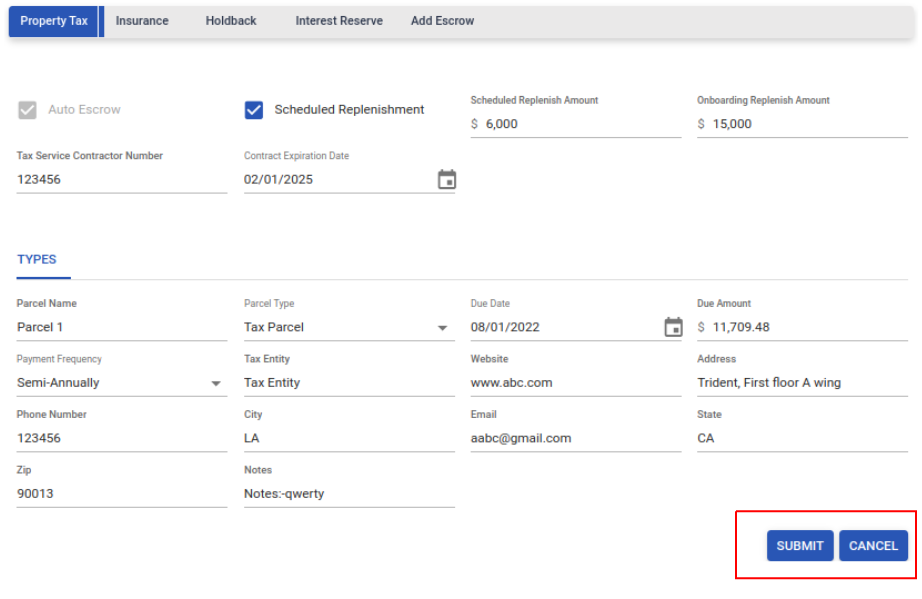
Each escrow tab has an edit icon to modify the details. When the user clicks the edit icon, a page as shown below is opened up for editing. After making the necessary changes, the user can either submit or cancel. Upon submission, the edited details will be updated in the escrow account.
Escrow Transactions
All transactions about Escrow are recorded and displayed in the "Transaction (Additional A/C)" section. The following transaction types are tracked:
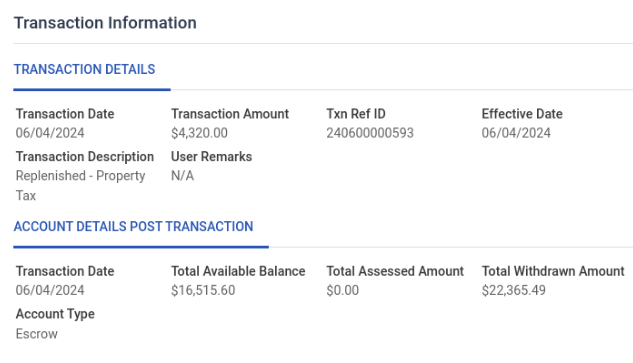
This is posted when the escrow amount is replenished. There are several ways to replenish the amount as described above in the “Escrow Replenishment” section.
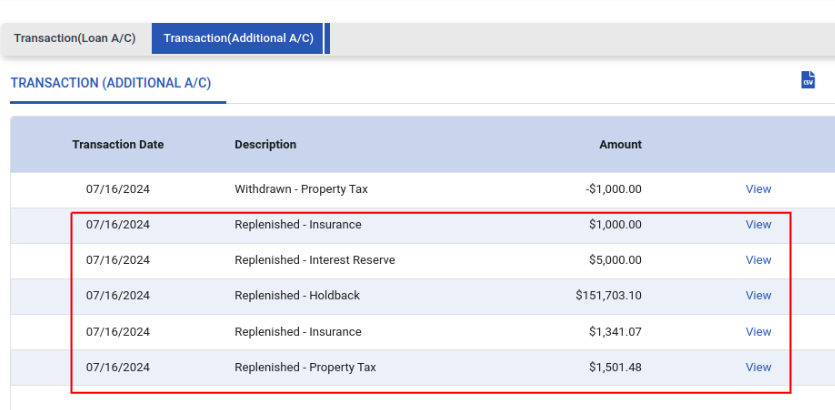
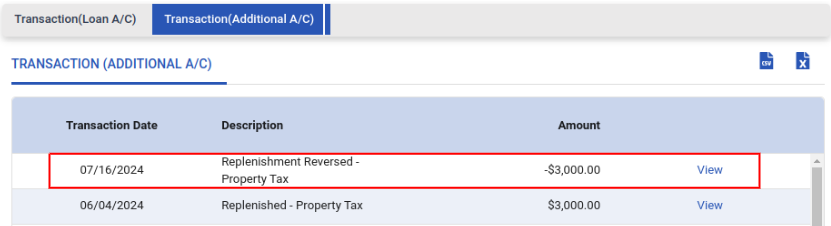
If a manual payment or ACH payment that replenished the escrow is reversed, a “Replenishment Reversed” record will be posted as shown below.
When there is any disbursement from the escrow account using the "Make Payment from Escrow" action, a withdrawn record will be added to the withdrawn account.
Example:
-
In the "Make Payment from Escrow" action, if "HoldBack" is chosen in the "Payment from" field along with the required fields, the withdrawal will occur from the "HoldBack" account.
-
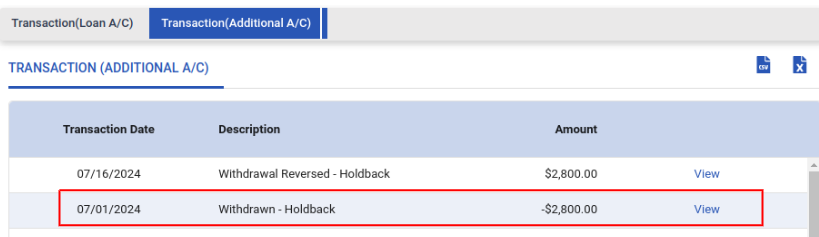
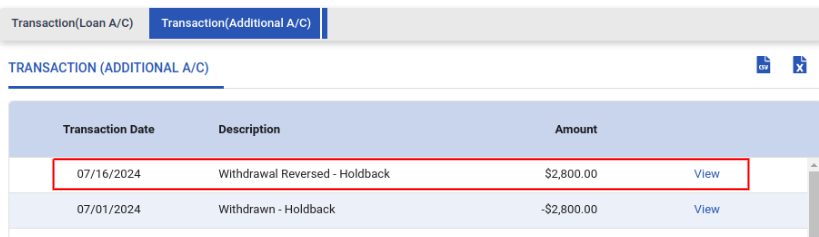
If the above transaction is reversed using the “Reverse” option in the transaction (Loan A/C) tab, a "Withdrawal Reversed" transaction will be added.
-
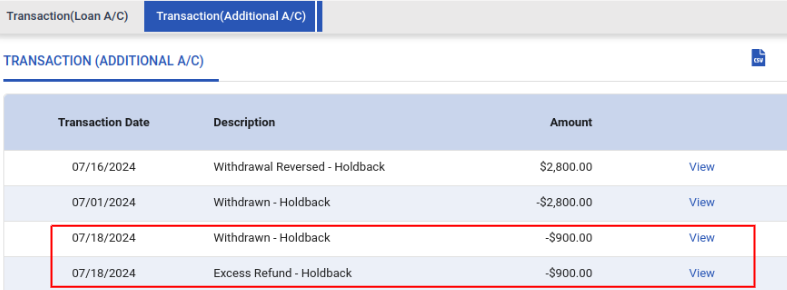
In the "Make Payment from Escrow" action, if "Refund" is chosen in the "Payment Towards" field and the required fields are submitted, an "Excess Refund" transaction is added.
-
For Example: In the screenshot below, "Holdback" is selected in the "Payment from" field and "Refund" in the "Payment Towards" field. Consequently, the withdrawal occurs from Holdback, and an Excess Refund transaction is added because "Refund" was chosen in the "Payment Towards" field.
Note:
In every transaction, there is a "View" button. When the user clicks this button, detailed information related to the transaction will be displayed.
Escrow Analysis
Escrow Analysis is a way of estimating the future replenishment amount for the escrow account based on the past replenishment amount and withdrawals. This process is applied to every escrow account in a loan where the “Auto escrow” flag is set to true. Analysis can be performed either on an ad-hoc basis or annually, and it can be done for a single loan or a batch of loans. We store the “Last Analysis Date” and the “Next Analysis Date” whenever an analysis is performed. Escrow Analysis can be performed based on the rules that the client wants to run.
Batch Analysis
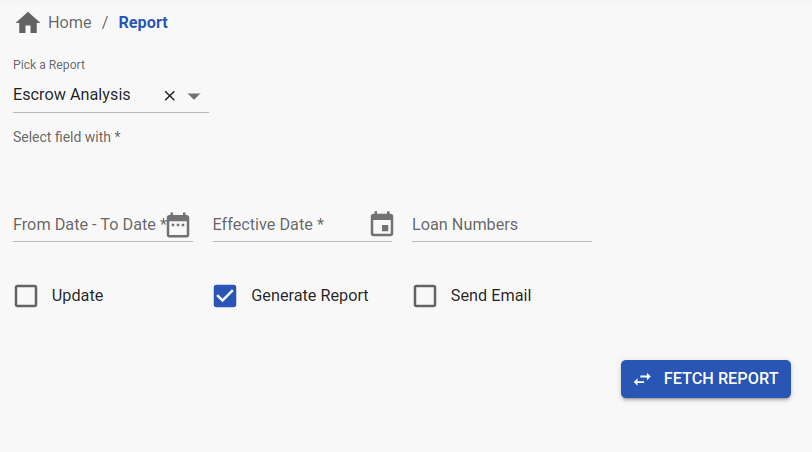
- For batch escrow analysis, the user provides the start and end dates. The system will filter out loans with a “Last Analysis Date” within this date range, and only these loans will be included in the escrow analysis.
- Client rules will be run.
- Selecting "Update" is optional during the analysis. If chosen, the system will automatically update each loan with the new analysis amount; otherwise, only the analysis will be performed.
- "Generate Report" is used to create the report, which becomes downloadable once generated.
- "Send Email" sends the report to the configured email address every time a report is generated.
- When the user clicks "Fetch Report" and provides the required details, the report will be generated and available in "Downloaded BI Report”.
Individual Analysis
There is a task API to perform individual loan analysis for each loan. The user can set up the Effective Date and Update option at the loan level. For individual analysis, the system will also consider the payments for each escrow from the Last Analysis Date to the current date. Once the API response returns a status of 200, the report will be available in the "Documents” section of the loan.
Exit Fee
Definition: An exit fee in a commercial real estate (CRE) or a construction loan is a penalty that a borrower may have to pay if they settle the debt before the loan's maturity date. The purpose of these fees is to protect the lender's anticipated yield on the loan.
This can be configured for any tenant and the amount for these fees can be manually assessed and applied to the loan using the existing Apply Fee action menu/API.
Based on the client’s needs, this can go in the Estimate Pay-off letter as well.
Lock-out Period
Definition: A lockout is a restriction within the CRE loan to prevent the prepayment of the loan. If the loan is paid early then the lender will not benefit from the anticipated yield of the loan. For this reason, some CRE loans have a lockout period, which is the minimum number of years in which the borrower cannot pay off the entire loan.
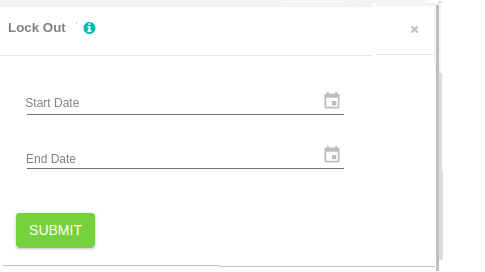
Using the below action, a CRE loan can be put under a lock-out. Once the user has entered the dates, the system shows these on the UI. If a loan is already under the lock-out period and the user selects another date(s) then the system will overwrite the current details with a new date(s). During this period, the borrower will not be able to pay off the loan. The user will not be able to make a payment that is greater than the minimum amount due. The minimum amount due is the summation of all the missed payments amount. If the payment amount is more than the minimum amount due, the system would throw a warning. Only upon positive confirmation, the system should proceed with the payment accounting. Please note that the scheduled ACH will remain as it is on the loans.
Earn-Outs
Concept: An earnout is a type of provision within a loan agreement. It allows the loan borrower to obtain additional capital from the lender. Earnouts can be associated with a range of purposes such as obtaining a certificate of occupancy or increasing the tenant occupancy space. When the borrower achieves the specified goal, the lender can increase the loan amount. As soon as the earned out happens, the loan becomes a P+I loan even if earlier it was in the int-only phase.
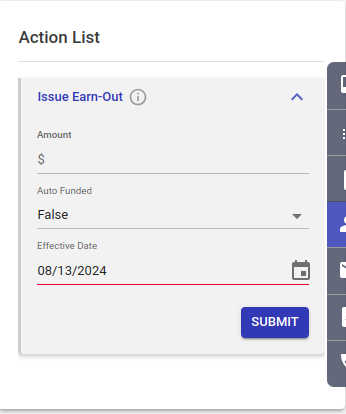
To achieve the same in LMS, we have an action at a loan level - “Issue Earn Out”.
It has the following fields: Amount, Auto-Funded, Effective Date and Submit button.
If Auto-Funded = true, then, LMS will do the disbursement, and based on the principal o/s should be updated.
Once clicked on the "Submit" button, a confirmation popup will appear and once confirmed will be submitted.
- As soon as an earn-out is issued to the borrower, it will increase the principal outstanding on the loan from effectiveDate, and also re-amortize the loan. Re-amortize on the same schedule version.
- The system will recompute the installment amount.
- The maturity date will remain the same in this case.
- It will also add a transaction to the main loan a/c with the name "Earn Out Issued" with the (negative)amount in the Principal column.
- We can issue earn-out for CRE loans that may have single or multi-tiers. We can issue earn-out for both fixed-rate interest loans and variable(index-based).
- We can issue earn-out in the backdate until it is after the last payment effective date.
- DB: Data will be stored in ‘earn-out-details’ collection
Variable Interest Rate
The long-term, big-ticket sized loans such as home loans, or construction loans, where the interest rate is usually variable meaning it is based on indexes such as LIBOR/Prime Rate, etc. in the US market. Interest Rate is calculated using spread and index. The index changes are tracked on a given periodicity and hence, the interest rate is also changed. The loan now starts accruing at a different interest rate. The payment amount also changes depending on the remaining tenure and the new interest rate.
The list of all indexes as per the tenant’s geography and the respective refresh frequency at which the index value is expected to be updated would be set at the tenant level.
Within a tenant specific setups will be done for the following values. These act as product defaults and can be overridden at the loan level.
Product level configurations:
- Index Source - This is typically the 3rd party from where the index is taken For example, WSJ Prime, LIBOR etc.
- Index Value - The value of the index(in %)
- Index Spread - This is the rate that the lender wishes to add to the Index Value for calculating the interest rate charged to the borrower(in %)
- Default floor and cap(min/max value) for borrower rate
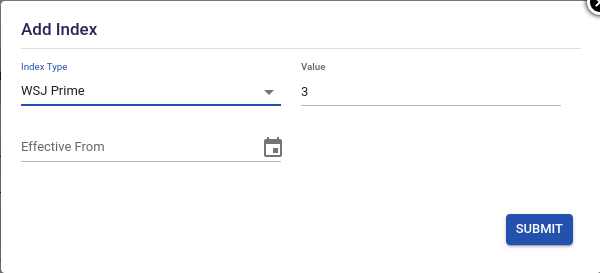
The above can be overridden at a loan level as well. The loan initial schedule is created based on the parameters passed during onboarding. Post that, the back office user can update the index using a global filter on the left pane as shown below.
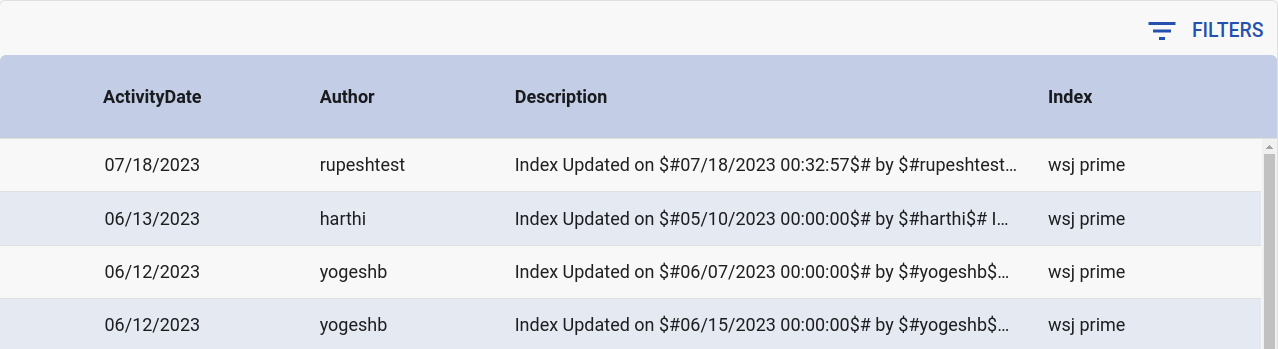
Once we click on the filter, the below screen opens up on the right pane.
-
Effective From, by default, is the same as the current date. Effective Date is optional and should be entered in case of backdating of index update. This usually happens when the index update is known at a later date.
-
The current value of the index is visible in the “Value” field based on the index source selected by the user.
Once the index value is updated, it has an impact till the end of the loan tenure or until a new update to the index has been made(whichever is earlier). -
History of index changes is maintained and displayed as shown in the above UI
-
The actual rate update on the loans happens during either of the following events:
-
- On the schedule date which is on or after the Index Update Date
- Tier change(in case of Flexi schedules) which falls on or after the Index Update Date
-
The following fields are added at the loan level:
-

If the loan is onboarded with a different index value than what is set up at the tenant level index rate, the loan onboarded value will be considered, and only on the next reprice event, the tenant-level index value will take effect.
-
Each time the rate changes, the daily rate of interest accrual changes on the next schedule date or next tier date(as per the configuration in 5a or 5b) after the effective date, and the system automatically starts accruing at that new rate on the Principal o/s as of that date.
-
Backdating Index Update:
- We allow backdating of an index by passing an Effective Date which can be of a past date. But this should be within x days of the current date - x is configurable as per the tenant.
- For backdated index updates for loans where payment is in progress, we adjust the interest amount with the next to next schedule. However, the interest rate change will be applicable from the schedule date or next tier date after the effective date.
- The system will re-run the accrual on the new rate as per the required date to match the scheduled interest with the accrued interest.
-
On rate change, the allocation to Principal and Interest changes. The payment amount also changes from the following schedule.
-
For Interest-only loans, the payment amount(interest-only schedules) would change when the rate changes.
-
Restructuring/modification modules also support this.
Penal/Default Interest Rate
When a loan defaults, the lender may want to charge a higher interest rate to the borrower. In such cases, the lender can choose to apply Penal/default Interest as soon as the loan goes delinquent. To achieve this, we have two parameters at the product level which can be overridden at the loan level as well:
- Base - This can be the base at which default interest will accrue. This can be total principal outstanding, missed principal interest (default value) or the complete missed installment amount as well.
- Spread - This is the value (in %) that is added to the onboarded interest rate to get a higher value.
This interest is stored in the Additional Interest bucket which is also part of the Payment Hierarchies.
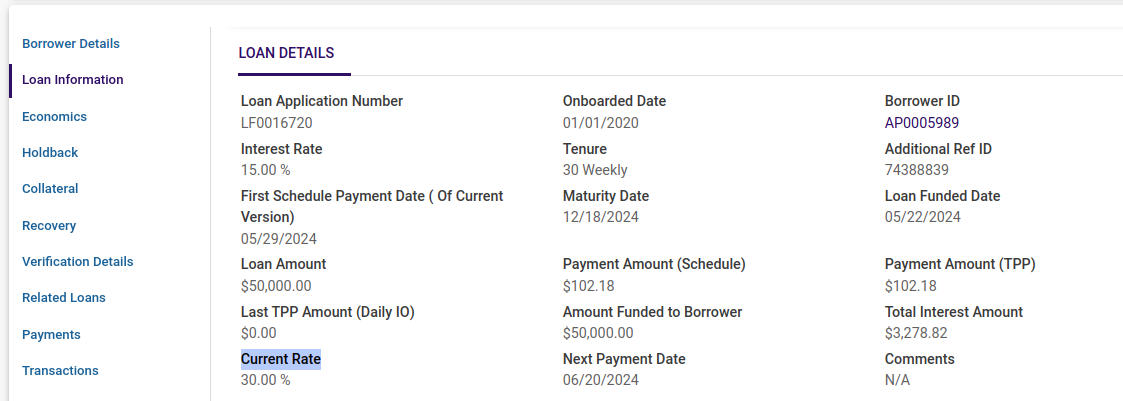
Also we have one field “Current Rate” in the Economics and Loan Details tab which shows the current interest rate for the loan. “Current Rate” field might be different from the original interest rate if the loan is in delinquent.
Types of Schedules for Interest-bearing loans
Types of Schedules
Interest-only schedules
A loan with this repayment schedule, where during the term we collect interest only and the last payment is a balloon payment to cover all principal and interest accrued.
Equated Installment Schedules
A loan with this repayment schedule has periodic payments of the same amount that are towards principal and interest on a reducing principal balance theory.
Flexible(hybrid) schedules
Typically, in CRE loans, the lender might choose to give a flexible payment plan to the borrowers. This can include an interest-only schedule followed by a fixed payment schedule. The lender can also offer combinations such as interest-only followed by balloon etc. Hence, in LMS, we support the onboarding of loans that have this type of hybrid schedule, create amortization based on this data, and also maintain the same in different scenarios.
LMS gets information on flexible schedules during the onboarding of a loan. We have different “Tiers” in the onboarding API and each of these tiers contains the below fields. There can be multiple such tiers in any loan based on the requirement.
-
Payment Start Date - the first schedule date in the tier
-
Number of Payments - number of payments in the tier
-
Schedule Type - this can contain any of the following
- Fixed Payment
- Interest Only
-
Payment Amount -
- if “Schedule Type” is “Interest Only”, then Not Applicable
- if “Schedule Type” is “Fixed Payment”, then this is optional if this tier is the last one. If not passed, then the system calculates. If this is not the last tier, then the amount needs to be passed here.
-
Interest Rate Type (Variable/Fixed) - If this is “Variable”, then the interest rate is calculated based on the “Spread” and “Index”(as defined below). If this is “Fixed”, then the interest rate is the same as what is being passed in the Interest Rate field below.
-
Interest Rate - is the Interest Rate in case of “Fixed” interest rate type. In the case of the “Variable” type, this is NA because the system only calculates.
-
Index - this has to be one of the configured values for the Index
-
Index Value- this is added to the spread to get the interest rate for “Variable” tiers.
-
Spread - this will be added to the Index to get the interest rate for “Variable” tiers.
-
Reprice at - this field is applicable only when “Interest Rate Type” is “Variable” and can contain any one of the following values:
- At the beginning of the Tier period: this means the system will take the latest index value at the beginning of the tier and will update the rate from the beginning of the Tier. The “Reprice on” date will be this date then.
- Schedule Date: This means the system will check for the latest index value on each schedule date irrespective of the tier and will update the rate from the beginning of the schedule. The “Reprice on” date will be this date then.
Note: The last Payment in such hybrid schedules is adjusted to accommodate the remaining Principal and Interest.
If the first tier is “interest only” then the tenure is the same as the total number of payments passed in the API. In this case, the first tier is “fixed payment” and the broken period is set as “Separate” then the tenure is the number of payments+1.
Loan Modification/Restructuring of flexible schedule loans
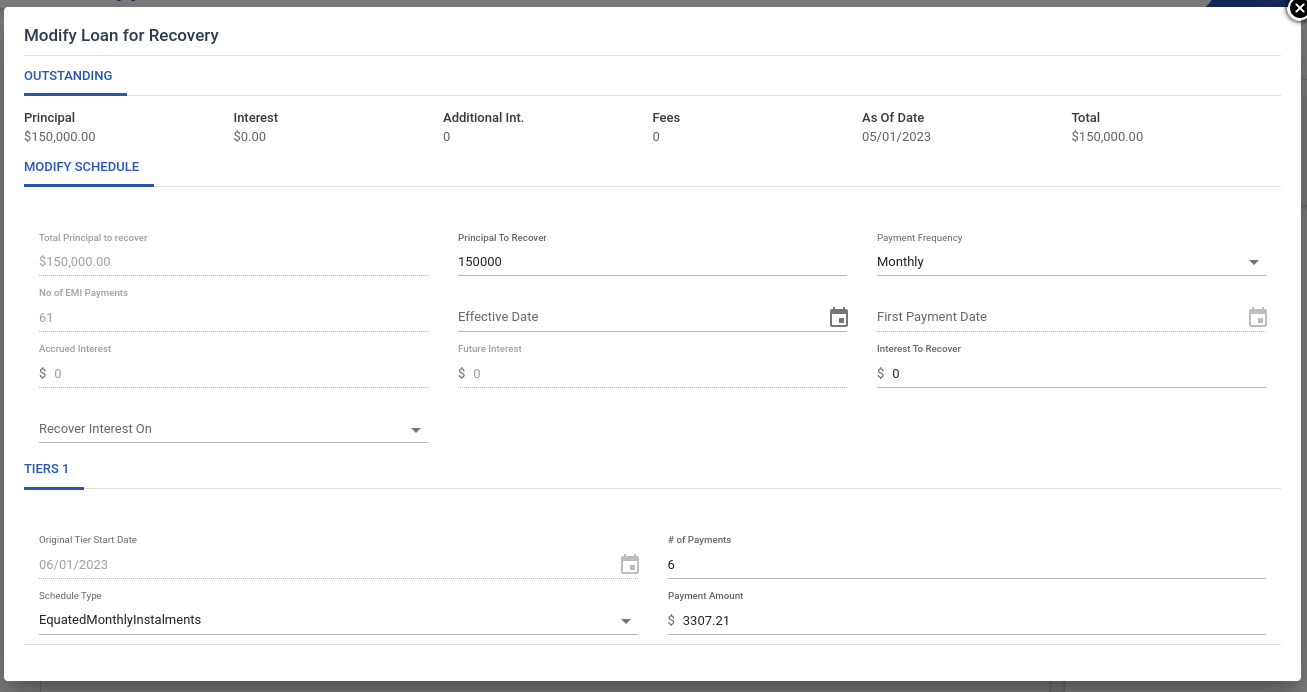
While modifying the loan, if the loan has onboarded with tiers, then the tier(s) information will be shown in the Modification/Restructure screen, otherwise the system will continue to show the existing modification/Restructure screen(as explained here and here).
We allow a user to add or edit the payment tier(s) information and based on these details a new schedule version is created. More details are listed below.
What is ITR?
How does one recover the prior interest?
Prior to modification or restructuring, any accrued and unpaid interest is referred to as Interest to Recover(ITR). The following options to recover the same are supported in the system:
- Distributed: ITR gets distributed across the total # of payments
- Custom: ITR gets distributed across the custom # of payments(entered on the UI)
- On First Schedule: ITR gets recovered with the first schedule
- On Last Schedule: ITR gets recovered with the last schedule
Loan Modification for Flexible Schedule Loans
-
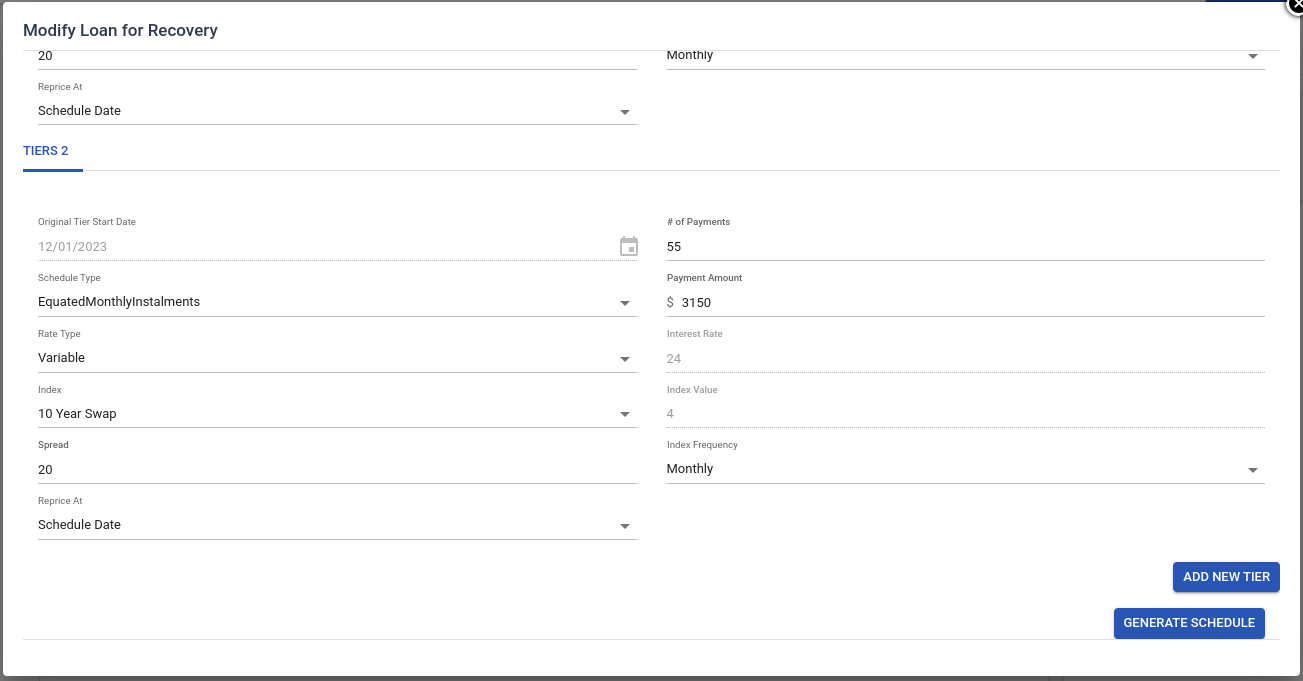
You can edit payment tier information, # of payments, Schedule Type, Payment Amount, Rate Type, and Interest Rate.
-
If the Rate Type is “Variable” then we will display Index, Index Value, Spread, Reprice At, and Index Frequency. All these fields will be editable and the Interest rate will be the sum of spread and index value.
-
If "Schedule Type" is Equated Monthly installment, then the "Schedule amount" field will be editable.
-
If "Schedule Type" is Interest only followed by Balloon payment for any tier then the "Schedule amount" field will not be visible on UI.
-
Only active and upcoming tier information will be shown in the modification.
-
A user can also add a new tier.
-
Loan Restructuring for Flexible Schedule Loans
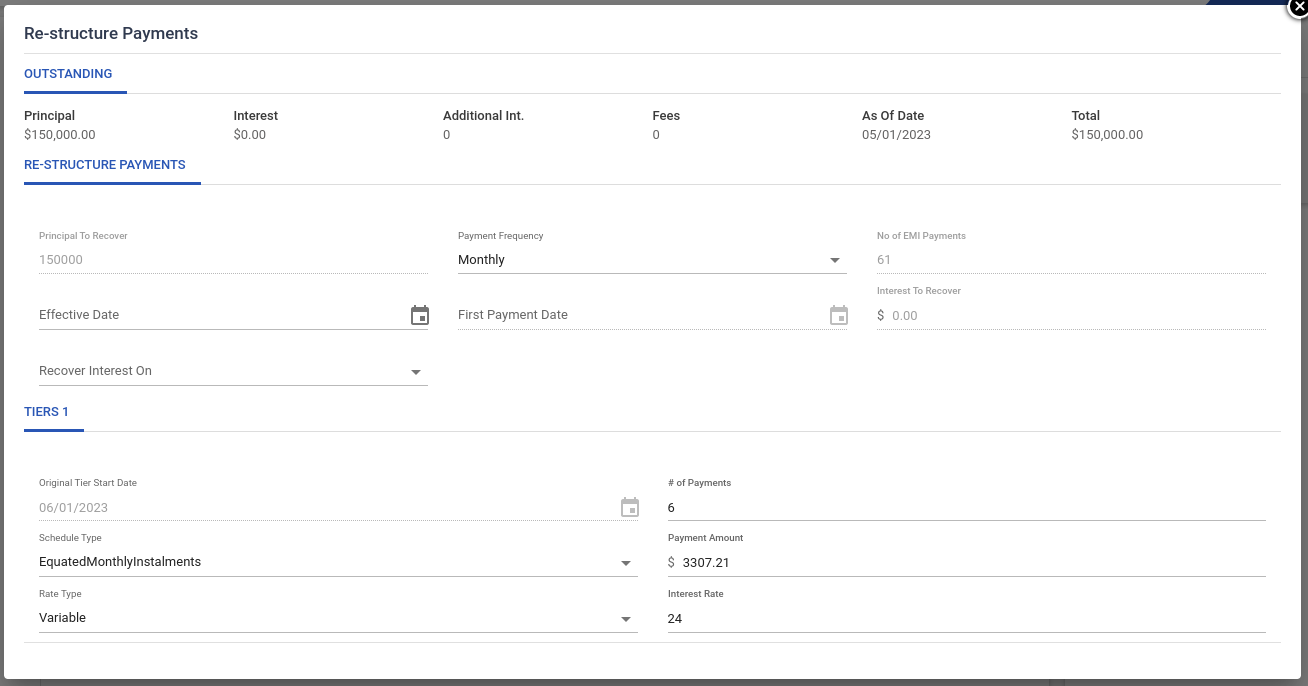
- We allow you to edit payment tier information, # of payments, Schedule Type, Payment Amount, and Rate Type.
- If "Schedule Type" is Equated Monthly installment and the tier is the current tier then the "Schedule amount" field will be editable.
- If "Schedule Type" is Interest only followed by Balloon payment for any tier then the "Schedule amount" field will not be visible on UI.
- Only active and upcoming tier information will be shown.
- A user can also add a new tier.
Note: For illustrations and samples, please contact the LF product team.
Role of APIs in LOS-LMS set-up
In the case of tenants who have LF’s LOS and LMS, we can provide a seamless solution. In the case of tenants who have stand-alone LF LMS, there is sometimes a need to interact with the LOS (non-LF or LF), APIs can be provided for onboarding the loans, sharing loan data, providing the latest economics, etc. These will be detailed and provided as a part of the setup. For example,
- Onboarding of Loans from LOS to LMS: When the decision to Fund the application is taken on LOS the loan is onboarded to LMS via onboarding API.
- Borrower Portal: Latest details of the loan such as transactions, upcoming payment details, schedule details, etc., can be published on the borrower portal via LMS APIs. The borrower can also initiate payment from the portal which calls the payment API in the back-end.
- Additional Draws: When a Tenant has a LOC type of product, their underwriter can make additional funding decisions, which can result in the creation of new repayment schedules. This workflow needs to be configured in the LOS. Once a decision has been made in the LOS, the Draw API is used to create a funding request for such a draw and results in the onboarding of this additional amount into the LMS in the same loan account’s line of credit. When this workflow is being configured, validations are typically put in place to ensure that the Credit Limit amount is not exceeded.
- Loan Economics Data: As a part of the underwriting, the loan economics of the existing borrower is shared with LOS. This can be done by searching for that borrower id in the LMS UI and navigating to the “Borrower Loans” tab in the top tabs section of any loan for the borrower or using the borrower search API. This API provides the DPD count for all loans of that borrower including outstanding balances.
Updated 8 months ago