
Security and User Access
Two-Factor Authentication(2FA)
Two-factor authentication (2FA) is an additional layer of security for your accounts with the Lendfoundry Loan Servicing portal. Requiring two forms of identification significantly reduces the chances of unauthorized access, even if your password is compromised, and protects against cyber threats and security attacks. This section will guide you through the setup process for 2FA using your email address or phone number.
Setting-up 2FA
Lendfoundry provides 2FA Verification via the registered users' Email addresses or Phone numbers. The client can choose either an Email address or Phone number for 2FA and upon confirmation, Lendfoundry will enable 2FA for the respective portal.
The following things are required and are to be confirmed by Implementation Leads before enabling 2FA-
- Every registered user has been set up with an individual mail address. If any changes are required, the client shall complete them beforehand.
- To enable 2FA using a Phone number, the client will require Twilio Credentials.
- To enable 2FA using a phone number, all the existing user profiles shall be updated through the script for the phone number details.
Steps for the Portal User
Once the 2FA is enabled for the portal, the following steps should be followed:
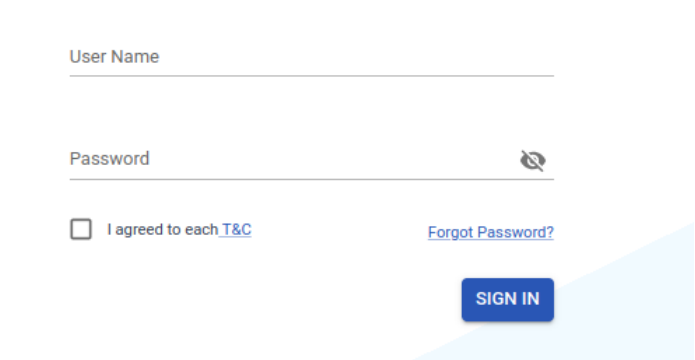
- The Portal User will be asked to provide a UserName and Password on the Login Page.
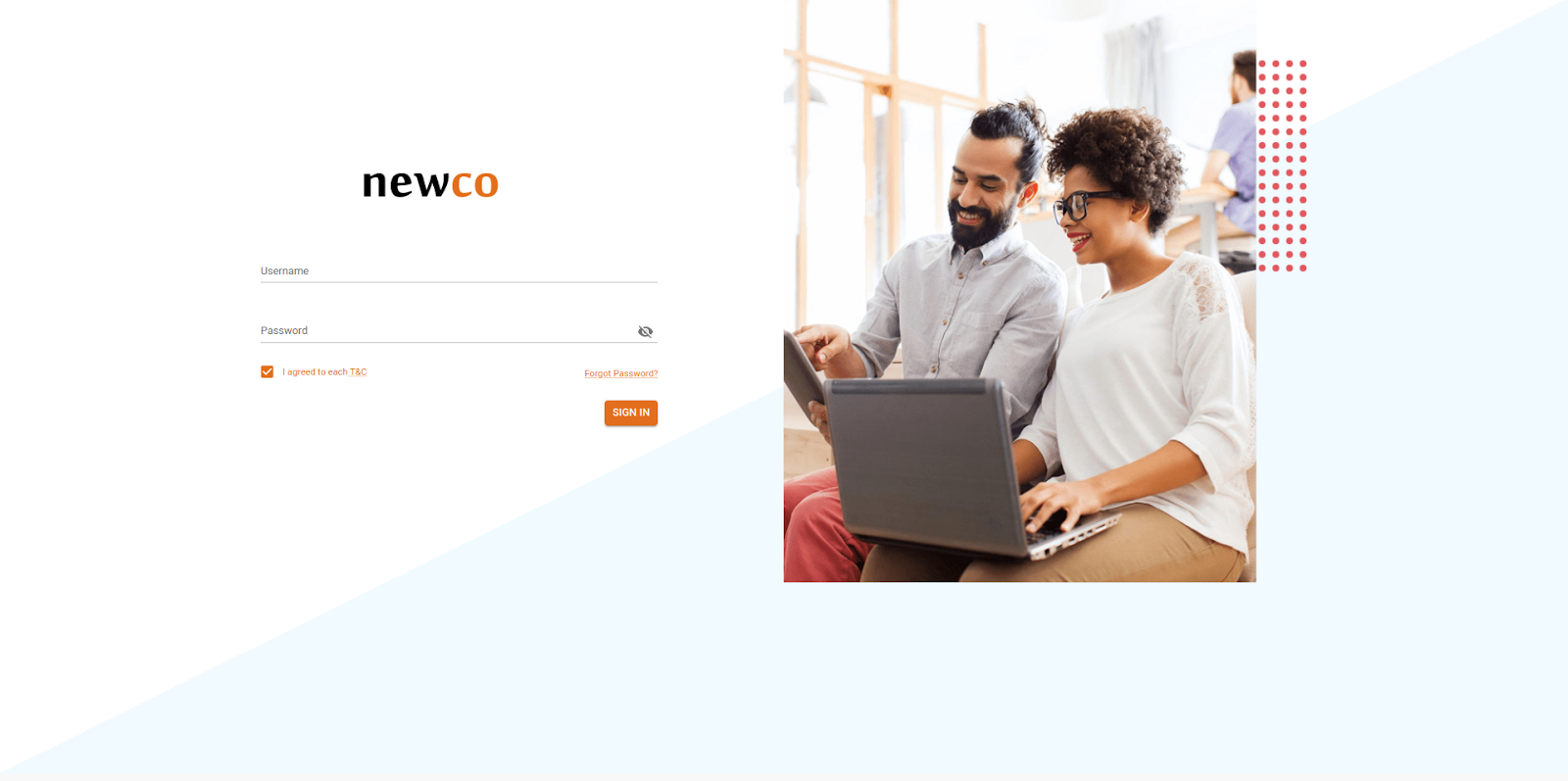
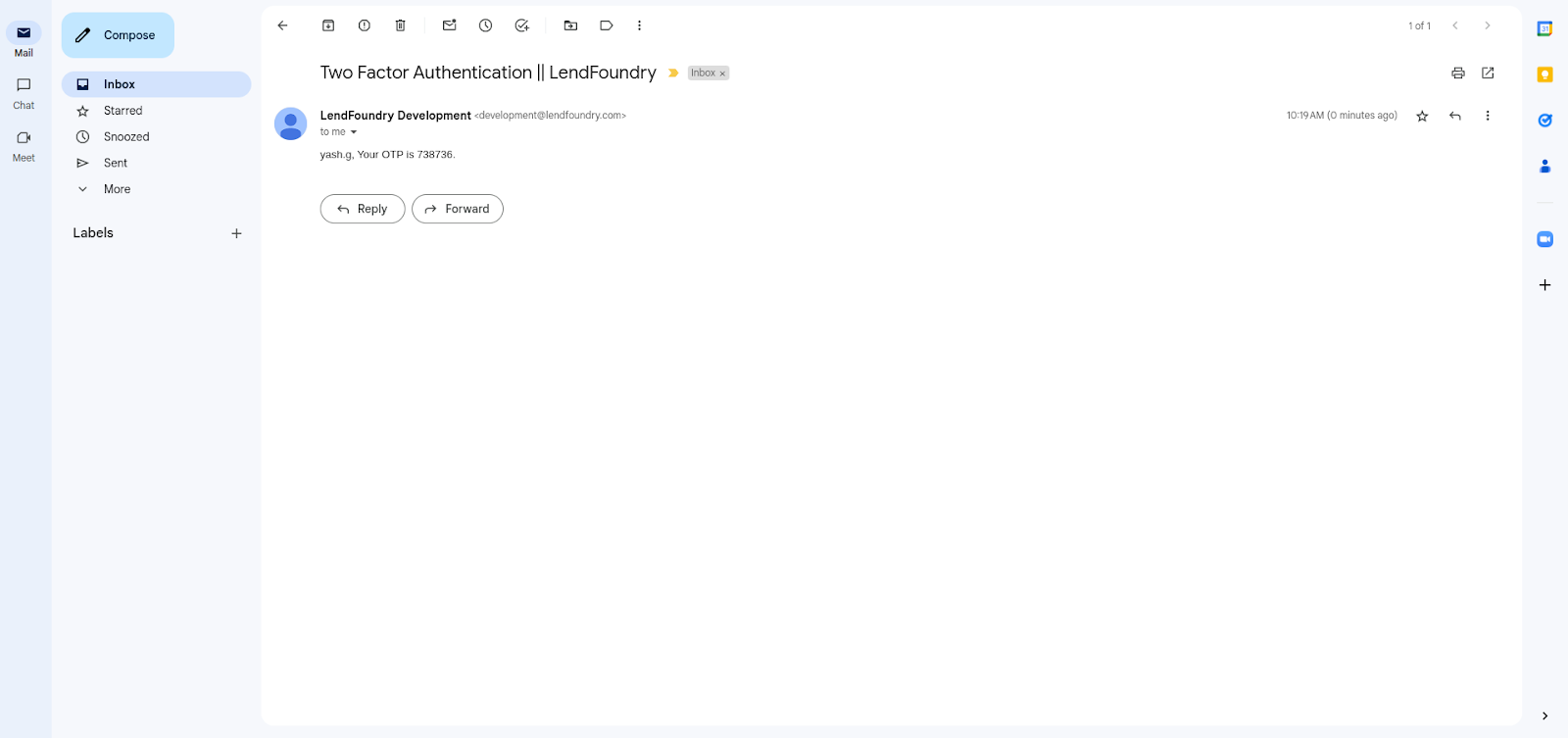
- After providing the details, once the user clicks on the “Sign In” Automated mail or SMS will be sent to the user. (Based on the configuration). The client can define the template.
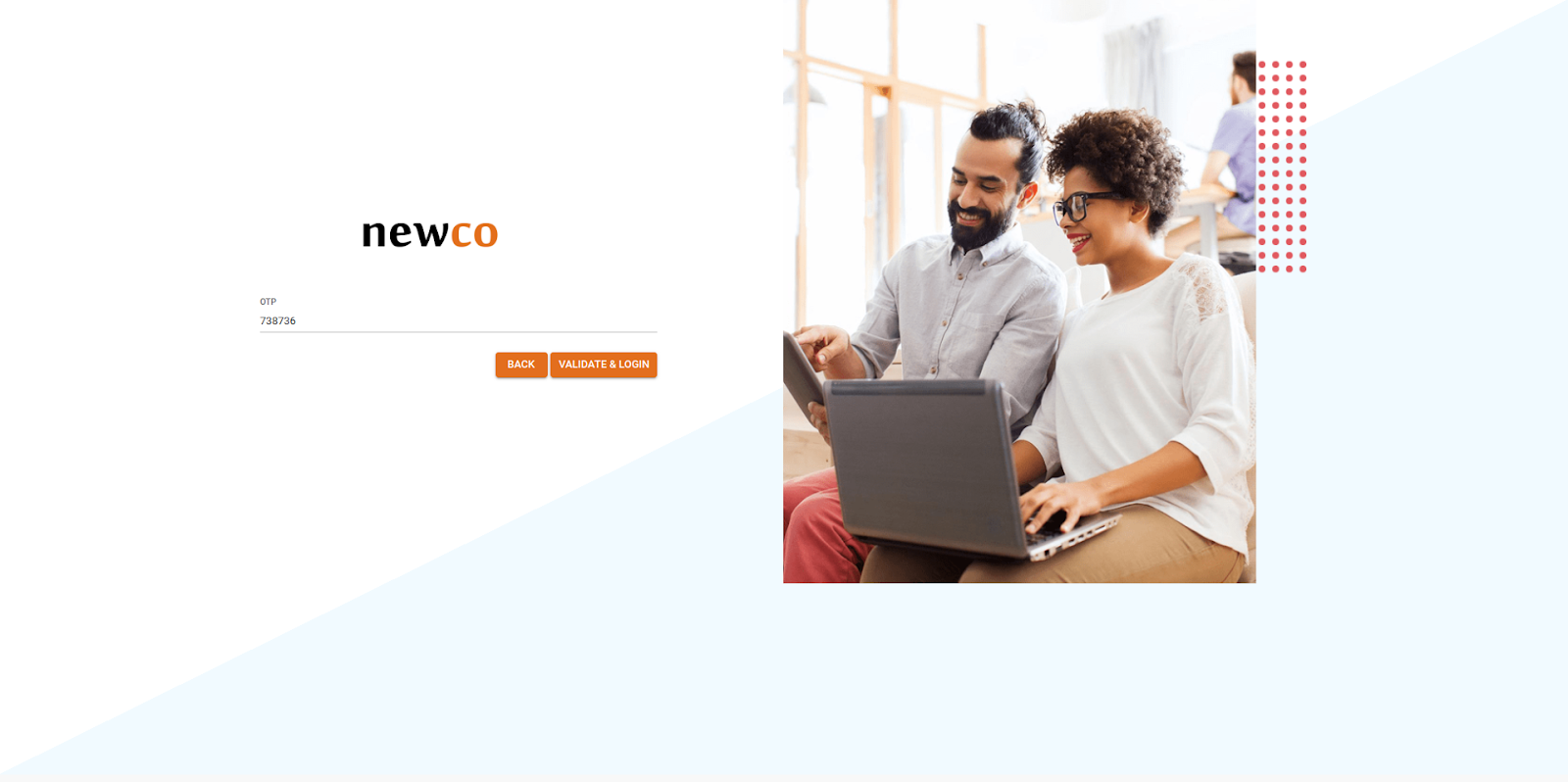
- Users can enter the received OTP on this page and once the OTP is validated, the user shall be logged in to the Portal.
Single Sign-On(SSO)
Single Sign-On (SSO) is an identification method that enables users to securely log in to multiple applications and services using one set of credentials. With SSO, a user only has to enter their login credentials (username, password, etc.) one time on a single page to access all of their SaaS applications.
Lendfoundry provides Single Sign-On (SSO) support for various applications used by users such as Loan Origination, Loan Servicing, and Syndication. Lendfoundry provides two default options for setup -
- SSO using Lendfoundry Setup
- SSO using Active Directory Service
SSO using Lendfoundry Setup
When the tenant has subscribed to Lendfoundry products Loan Servicing, Syndication, and Loan Origination, the tenant can opt for SSO using Lendfoundry Setup. This feature will allow a single user account to access all the Lendfoundry products.
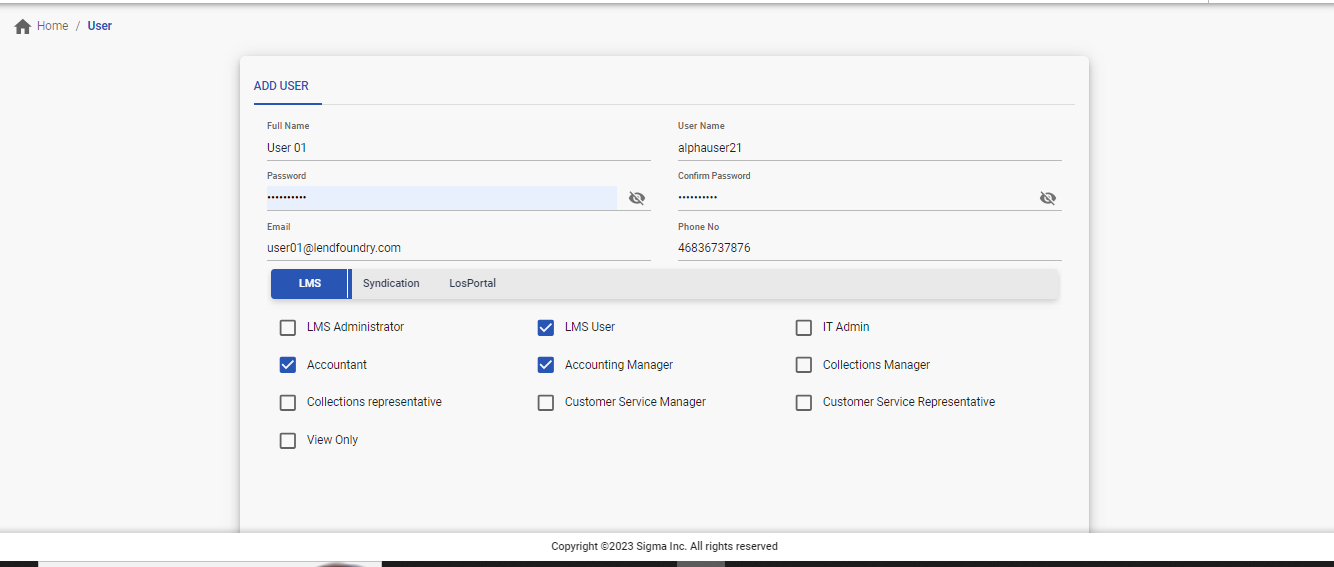
User Management would be maintained on the Loan Servicing system and an administrator can create new users or assign/remove roles for the users through User Management.
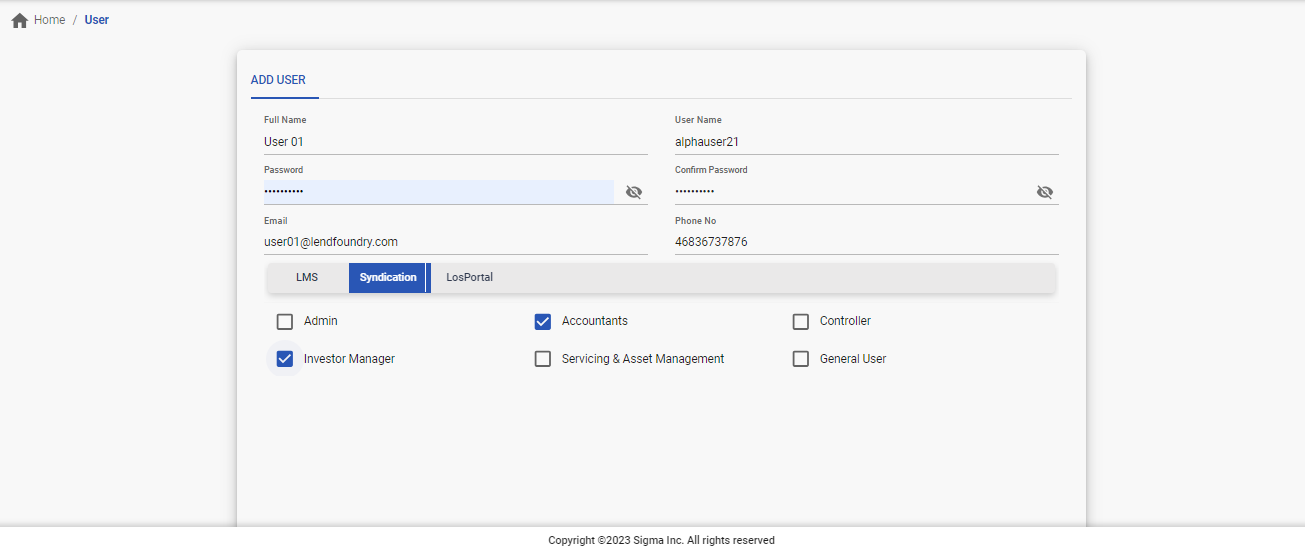
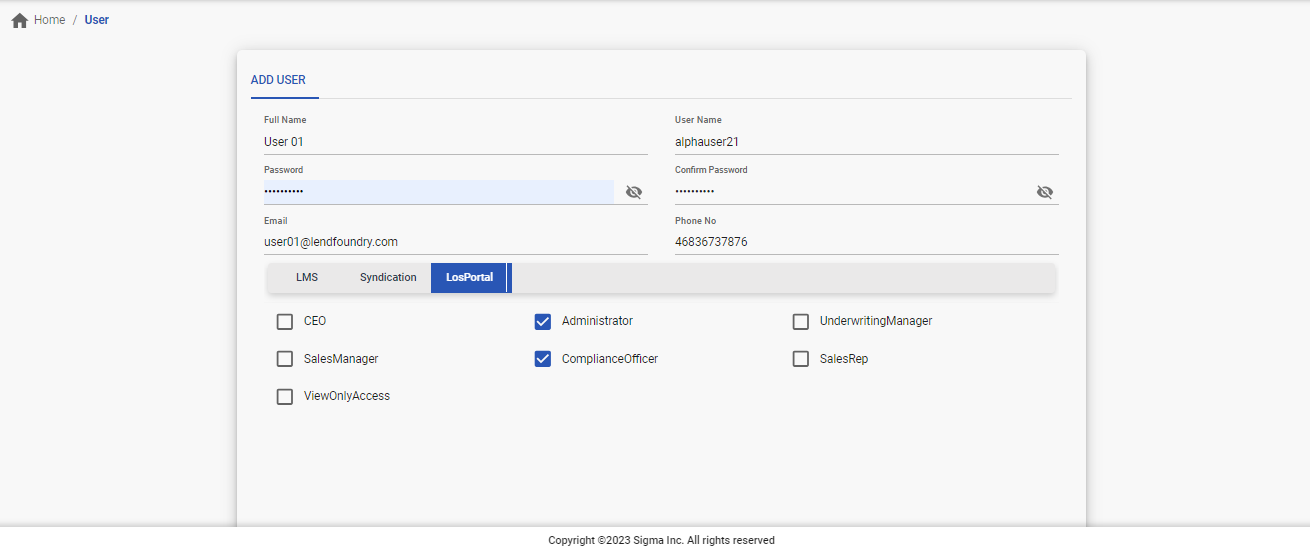
Navigation to various systems
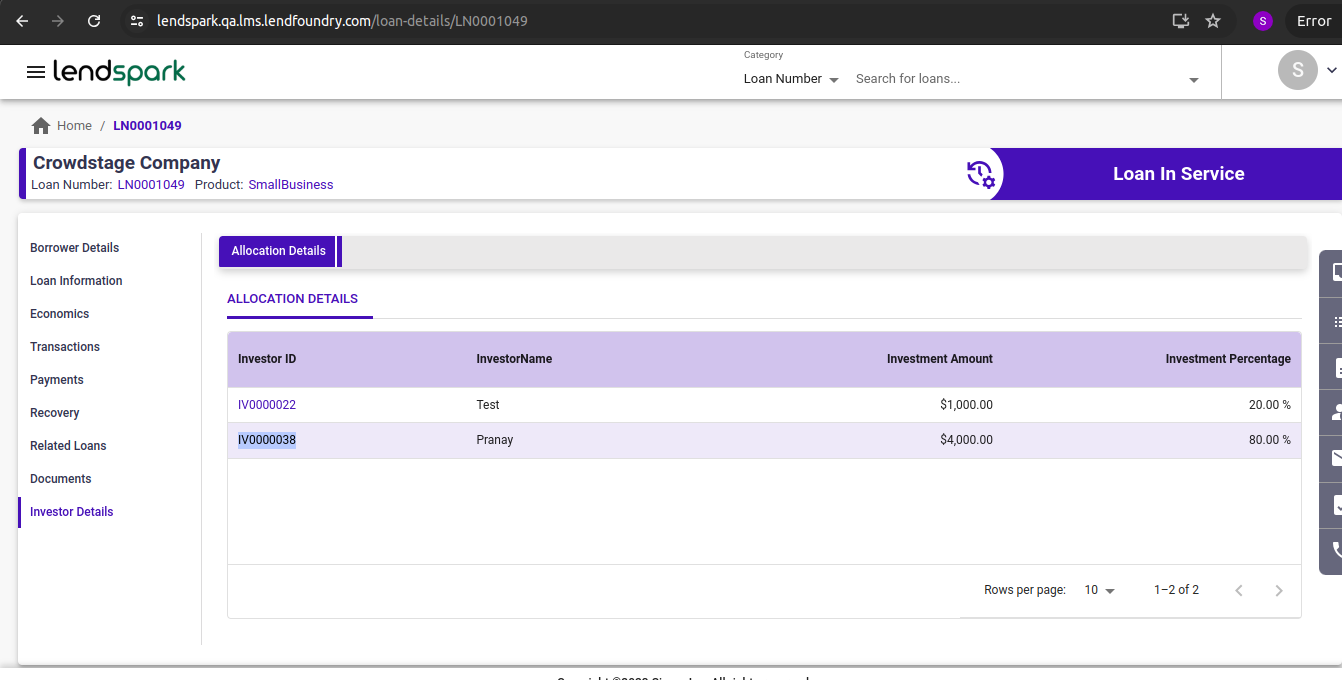
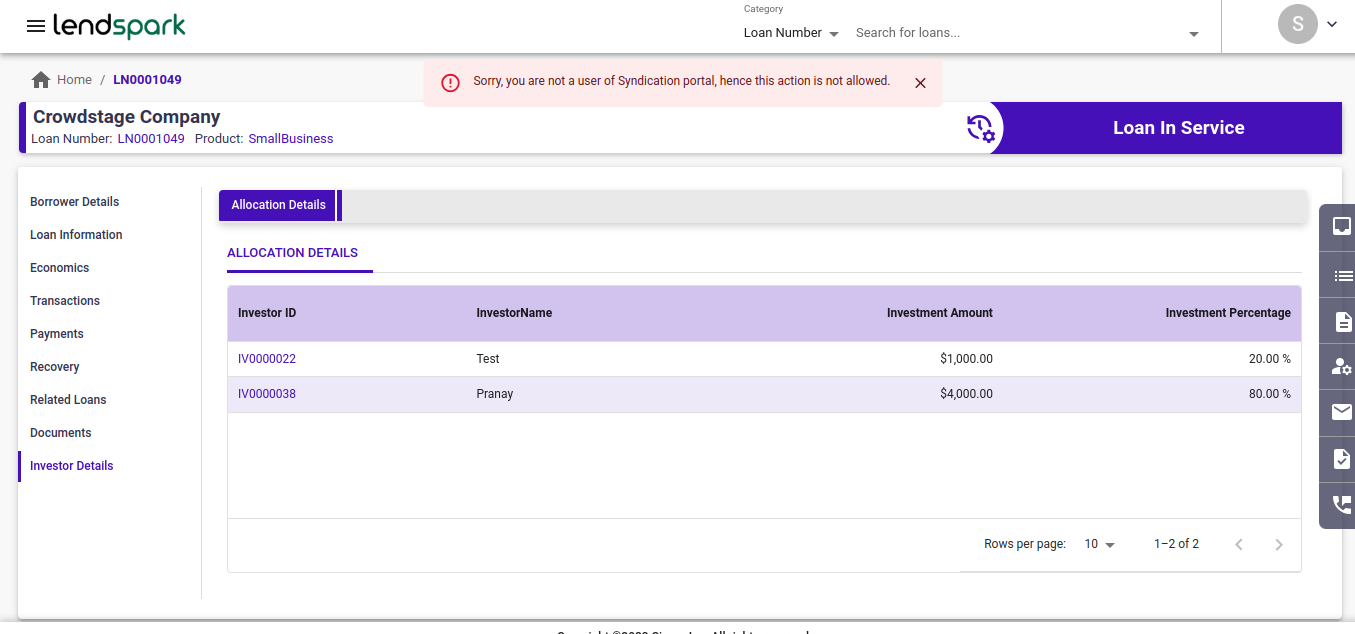
Users who have roles assigned in all the products can navigate to various systems through unique identifiers such as Loan Application Number, Loan Number, Investor Account Number, etc. This can be modified as per the requirements.
The navigation feature is Access controlled and the system will show necessary validations for the allowed actions,
SSO using Active Directory Service
Lendfoundry supports user management using Active Directory (AD) Service that runs on Microsoft Windows Server. The main function of Active Directory is to enable administrators to manage permissions and control access to network resources .
Key Points:
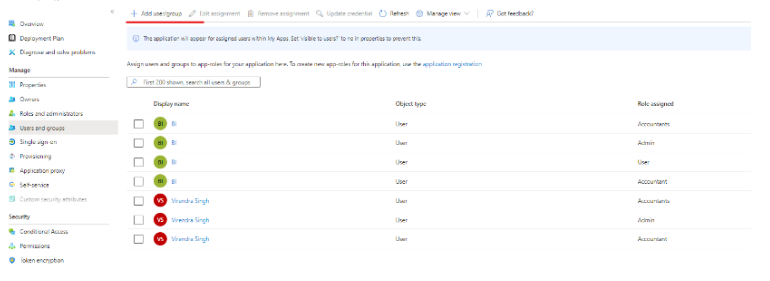
- Tenants can opt for SSO using Active Directory Service. In this case, the User Management would be maintained through Active Directory and the same will not be available in the Lendfoundry system.
- Active Directory Administrator would be able to create, edit access, and deactivate users through user management in Active Directory.
- The user will be able to view and perform actions as configured for her role in the Servicing/Syndication/ Origination System.
- Lendfoundry updates any changes in the user roles, when the user logs in again to the system.
One-time user set-up
Once LF has set up the environment and the products, LF will create a user for the Tenant and share the credentials. Thereafter, the Tenant can create users with different roles based on its org structure using the User Management feature. The first screen in the LMS portal is the Login page screen as shown below. With the user credentials, the user can log into the LMS. The Forgot Password feature helps the user to reset his password.
Alternatively, the Tenant may have integrated via the OKTA SSO System, wherein the user creation and login will happen via OKTA.
Updated 8 months ago